Summary: Learn how to draw a cartoon head using the Microsoft Paint graphics program in this free video lesson on software art.
Paul Louis is an award-winning actor, singer, songwriter, puppeteer, illustrator and filmmaker. He has been in the "creativity" biz for over 25 years. Louis is the creator, writer and...read more
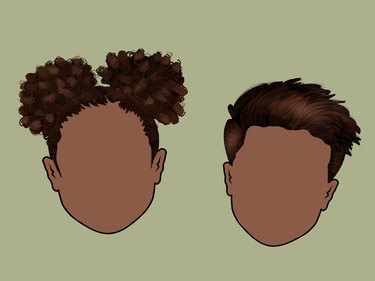
A cartoon is any form of illustration usually drawn for a humorous effect. The word “cartoon” can refer to one drawing or a series of drawings that are put into motion when viewed in a certain order at a high speed. Comic strips are popular cartoons that are found in newspapers and magazines around the world and usually have a humorous, symbolic, or satirical meaning. Animated cartoons are shown on television for children around the world. Various themes of cartoons include animals, fables, fairytales, super heroes, and anime.
In this series of educational and instructional videos, you will learn how to draw a cartoon figure using Microsoft Paint. Our drawing expert Paul Louis gives a step-by-step demonstration on drawing a colorful “toon.” You'll learn how to draw a cartoon character in easy-to-follow instructions, beginning with the head & working down to the sneakers. He also demonstrates how to use the line tool and spray paint tool to color, add details and add depth to your cartoon drawing. Paul then demonstrates how to use the animation features of the program to bring your character to life!
"this is Paul Louis and I like to show you today how to draw cartoons in Microsoft paint. Alright so let's start to make some cartoon characters in Microsoft paint. Now if you have Windows then you do have Microsoft paint. It is a very, very simple program to use. A lot of people don't use it but it is a fun program to use to make cartoon characters and it is really, really easy. So let's get started. Right over here you see that we have a bunch of tools listed, then down here we have our colors to start of pallet down here. So let us start by clicking on this line right here and what that is going to do is going to bring up some options for the thickness, how thin you want your lines to be. I'm going to click on this line right over here, then I'm going to go down here and select black, just click on it. Then right over here I'm going to click on this ellipse tool right over here and we are going to start by making the head. A big round circular shape and by the way we do that is we are going to hold down the left mouse button and we're just going to pull it out like so."