eHow launches Android app: Get the best of eHow on the go.

How To

How to Make Funny "fortune cookie" Fortunes for Rules/Reminders to Kids

Member
By Lorin Neikirk
User-Submitted Article
(0 Ratings)
Using funny fortunes not only bring a smile to your kids' faces, but actually get them to read and remember the rules!
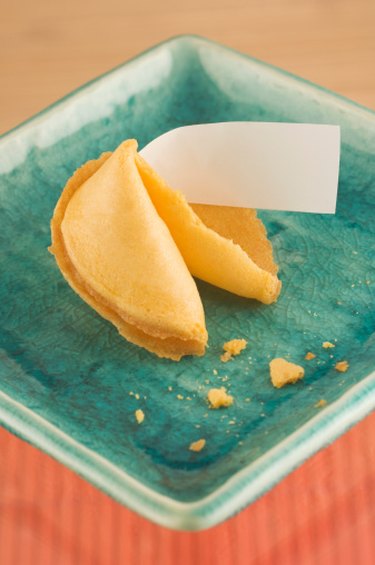
image by Lorin Neikirk

"Stop hitting your brother!" ...It doesn't work, does it? Ordering kids around, I mean. If it did work, we wouldn't need to do it over and over to get the job done! But when we can find creative ways of keeping the peace? That is when you are cooking with fire! (Which is infinitely better than putting them out!) In just a few steps you can make funny fortunes and keep the kids smiling, and in control.

Difficulty: Moderate
Instructions

Things You'll Need:

  • A desktop publishing software application, such as MS Publisher
  • Tabloid paper (11 X 17)
  • A printer than prints on tabloid paper
  1. Step 1
    Setting the format to TABLOID makes the page the correct size for printing.
     
    Setting the format to TABLOID makes the page the correct size for printing.

    Open your software and format the page to be on TABLOID sized paper. If your printer prints on this size, it should be an option under the PAGE SETUP option on the FILE menu. If not, and you have Adobe Acrobat, you can select that as a printer temporarily to be able to correctly format the page.

  2. Step 2
    We set the inside guide to .5
     
    We set the inside guide to .5" since all margins are .25 on the paper. This creates two internal "margins" between the boxes.

    create two boxes per page using the RECTANGLE tool on the drawing toolbar. The easiest way to do this is to create layout guides by going to ARRANGE>LAYOUT GUIDES> and clicking the GRID GUIDES tab. Select 1 column and 2 rows, with a .5" spacing between guides. Your margins should be .25 for each margin on the MARGIN GUIDES tab. See below for a link for help with the rectangle tool in MS Publisher.

  3. Step 3
    In this picture you can see where the box tool is located, in the top righthand corner, next to the oval.
     
    In this picture you can see where the box tool is located, in the top righthand corner, next to the oval.

    After you have made a box, and stretched it to fit within the margins, format the box to have about a 3 point black border by double clicking on the box and going to the COLORS AND LINES tab,

  4. Step 4
    A great way to find images online is to do a Google image search. See resources below for an easy link.
     
    A great way to find images online is to do a Google image search. See resources below for an easy link.

    If you want some Japanese symbols for the background, you can easily locate them online with the link below. Insert the picture you saved to your computer, by going to INSERT>PICTURE>FROM FILE.

  5. Step 5
    Even with the formatting, you may want to play with the text so it looks the way you want it to.
     
    Even with the formatting, you may want to play with the text so it looks the way you want it to.

    Insert a textbox and right click for the shortcut menu. Format the textbox as follows: Vertical alignment to middle, 1" margins inside the text box, and font sixe "best fit".

  6. Step 6
    If the text is messed up, like in the photo, it probably defaults to
     
    If the text is messed up, like in the photo, it probably defaults to "square", as shown. Reformat the text wtrapping to reflect "none".

    Center and type your rule or saying in the textbox, remembering to use humor and Japanese fortune flair! See the link below for ideas, on a pre-made set.

  7. Step 7
    When the small dots are disconnected, the items are not grouped. Click the box with the dots to group. Right click to copy and paste.
     
    When the small dots are disconnected, the items are not grouped. Click the box with the dots to group. Right click to copy and paste.

    Group the items, then copy and paste it to the area below. (See below with help on that.) Click the textbox to change the text to a new fortunem and you are done!

Tips & Warnings
  • If you do not have a printer, or to make it easier to print, save as a .pdf and send to a place such as Office Max. The print outs should be inexpensive.
  • After cutting, spray the fortunes with a light coat of clear spray paint. (It looks terrible at first, but dries nicely.) This adds to the durability.
  • If your image is on top of yout text, change the order of your elements, by going to ARRANGE and ORDER. Send your Japanese characters the the back.
  • Use sticky, non-residue tacking gum to tack to walls, doors, mirrors, etc.
  • Make sure your printer is not set to DUPLEX, as this means the back of your fortunes will be printed on.

Comments  

justscott said

Flag This Comment

on 8/4/2009 Very good idea and well written!

Subscribe

Post a Comment

Post a Comment

Related Ads

  • Have you done this? Click here to let us know.
I Did This
Get Free Parenting Newsletters

Copyright © 1999-2009 eHow, Inc. Use of this web site constitutes acceptance of the eHow Terms of Use and Privacy Policy .   en-US Portions of this page are modifications based on work created and shared by Google and used according to terms described in the Creative Commons 3.0 Attribution License. † requires javascript

eHow Parenting
eHow_eHow Parenting, Relationships and Family