Home Sweet Home
Hacks, Tips & Tricks
Squeaky Clean
DIY Decor
Carpentry & Remodeling
Maintenance & Repair
Green Thumb
All Home Sweet Home
Chow Down
Main Dishes
Sweet Treats
Snacks
Copycat Recipes
Drinks & Cocktails
Sides & Appetizers
Veggie Faves
Food Hacks
All Chow Down
Get Crafty
Sew Simple
Fun Crafts
Art Projects
All Get Crafty
Let’s Celebrate
Valentine's Day
St. Patrick's Day
Easter
Mother's Day
Father's Day
4th of July
Back to School
Halloween
Thanksgiving
Christmas
New Year
Weddings
Baby Showers
Birthdays
Parties & Events
Gifts
All Let’s Celebrate
JOIN OUR NEWSLETTER
JOIN OUR NEWSLETTER
Home
Let's Celebrate
Baby Showers
Baby Showers
By
Jonathan Fong
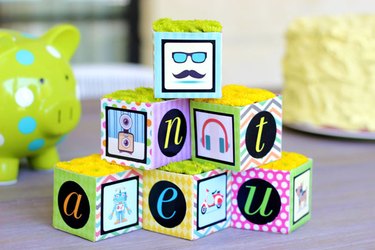
Baby Shower Decor: DIY Floral Baby Blocks
Let's Celebrate
By
Allison Stevens
How to Make a Bib Bouquet
Let's Celebrate
By
Cindy Ramos
How to Make a Balloon Pacifier for a Baby Shower
Let's Celebrate
By
Taylor DiVico
How to Make Toilet Paper Diapers for a Baby Shower
Let's Celebrate
By
Kimberly Turtenwald
How to Make a Baby Shower Corsage Out of a Pacifier
Let's Celebrate
By
Camela Bryan
How to Make a Sash for a Shower
Let's Celebrate
By
Jonathan Fong
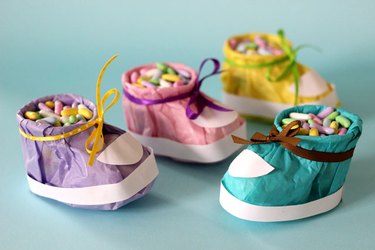
How to Make Baby Shower Booties Out of Tissues
Let's Celebrate
By
Krystal Miller
Funny Baby Shower Games for Daddy
Let's Celebrate
By
Christina Martinez
How to Address Baby Shower Envelopes
Let's Celebrate
By
Lily Mae
How to Decorate a Baby Shower With Pictures of Mom & Dad
Let's Celebrate
By
Kristen May
How to Make Baby Shower Diaper Animals
Let's Celebrate
By
Skip Davis
Places to Have a Baby Shower in St. Louis, Missouri
Let's Celebrate
By
Sammy Delarosa
Filipino Christening Gifts
Let's Celebrate
By
Melissa Gagnon
Baptism Gifts for a Grandson
Let's Celebrate
By
Ashley Garay
How to Gift Wrap a Baby Stroller
Let's Celebrate
By
Lucy Natek
List of Baby Food for Baby Shower
Let's Celebrate
By
Lars Tramilton
Baby Shower Foods & Appetizers
Let's Celebrate
By
Jennie Ashley
Gifts for a First Girl Grandchild
Let's Celebrate
By
Rebekah Martin
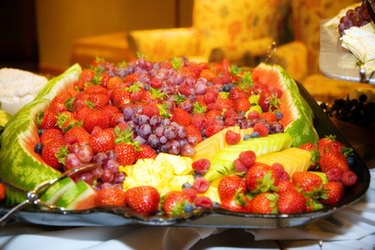
Baby Shower Fruit Tray Ideas
Let's Celebrate
By
Marianne Moro
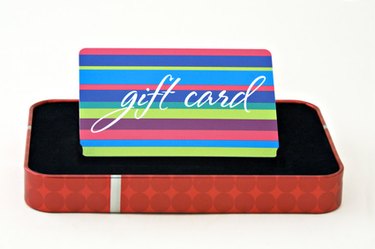
How to Ask for Gift Cards at a Baby Shower
Let's Celebrate
By
Alane Michaelson
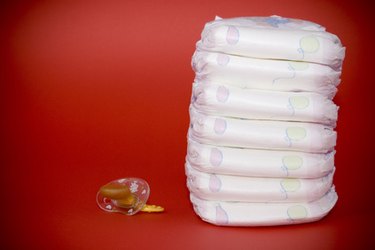
How to Make a Diaper Cake Train
Let's Celebrate
By
Miranda Brumbaugh
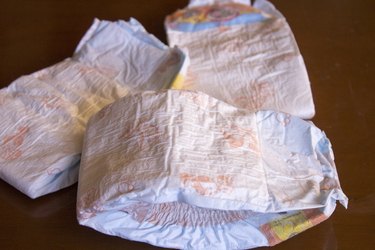
How to Make Baby Shower Gifts Out of Diapers
Let's Celebrate
By
Ronnie Dauber
How to Make a 4-Wheeler Diaper Cake
Let's Celebrate
By
Sarah Mollman
How to Make Name Tags for Baby Showers
Let's Celebrate
By
Christi Aldridge
Welcome Baby Party Ideas
Let's Celebrate
By
Janece Bass
Food to Serve for an Afternoon Baby Shower
Let's Celebrate
By
Camela Bryan
How to Fold a Baby Blanket Flower
Let's Celebrate
By
Michelle Bermas
Invitation Wording for a Baby Shower After the Baby Is Born
Let's Celebrate
By
Janece Bass
How to Address a Baby Shower Card
Let's Celebrate
By
Melissa Gagnon
How to Inscribe a Baby Book
Let's Celebrate
By
Tara Dooley
How do I Word an Open House Shower Invitation?
Let's Celebrate
By
Michelle Barry
How to Word a Diaper Raffle on an Invitation
Let's Celebrate
By
Ashley Mackenzie
Food Ideas for a Large Baby Shower Party
Let's Celebrate
By
Melissa Gagnon
Baby Shower Games to Play at a Restaurant
Let's Celebrate
By
Daisy Cuinn
How to Make Cardboard Baby Shower Blocks
Let's Celebrate
By
Karleigh Spears
Finger Foods for a Boy Baby Shower
Let's Celebrate
1
2
>
Report an Issue
Contact*:
Severity*:
High
Normal
Low
Description*:
Screenshot loading...
Cancel
Submit