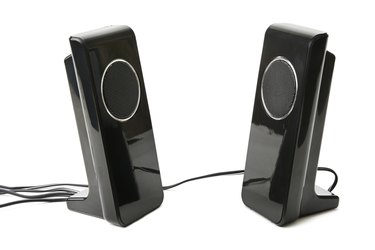
Audio playback is an important part of many applications and processes on your Windows 8 computer, and when it stops working properly it's a real pain. Perform a series of quick troubleshooting procedures to fix the lack of sound coming from your computer's speakers.
Checking Basic Audio Connections and Settings
Video of the Day
Before performing more advanced troubleshooting, check some basic issues first. Verify that your speakers are connected to the audio outputs on your computer or sound card. If your keyboard has a volume mute button, make sure it's not activated. Verify that your speakers are turned on and, if they have dedicated volume controls, make sure they're turned up to an audible level. Check that the main audio on your Windows 8.1 computer isn't muted. To do this, swipe your mouse to the upper-right corner of your screen, select "Settings" and choose "Volume Control." If you're listening to music or watching a video in a dedicated multimedia program such as Windows Media Player, check its sound controls to verify that they're not muted.
Video of the Day
Testing Your Speakers with Another Device
Test your speakers with another computer or audio-enabled device to verify that the lack of sound is caused by your computer and not the speakers themselves. If the lack of sound persists when the speakers are connected to another compatible device, then the speakers themselves may need to be repaired or replaced.
Troubleshooting Wireless Speakers
Wireless speakers often present their own distinct set of problems. If your speakers are battery-powered, check the batteries' charge. Old batters can struggle to produce sufficient power to transmit audio. If your speakers are connected by Bluetooth, remember that Bluetooth devices have a maximum range of roughly 33 feet. Attempting to use Bluetooth speakers near the limit of this range can lead to audio drop-outs. Also check that Bluetooth is enabled on your computer. Swipe your mouse to the top-right corner of your screen, click "Settings" and select "Change PC Settings." Choose "Wireless" and verify that the Bluetooth switch is toggled to the On position.
Microsoft Audio Diagnostic Tool
If none of these solutions fix your audio issues, try Microsoft's automatic audio diagnostic tool (link in Resources). This free service scans your PC to determine whether or not your speakers are configured correctly. It also checks to see you have the most up-to-date audio drivers, and if it finds you don't, it installs them for you.