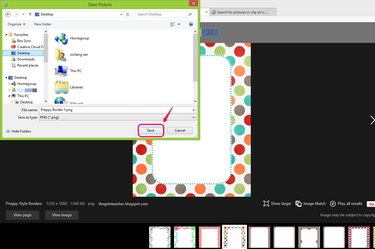
Inserting a well-designed border image into your Word file for presentations or resumes can draw your audience's attention. The border options in Microsoft Word are limited, but you can find and download Microsoft Word border images on the Internet using a search engine.
Step 1
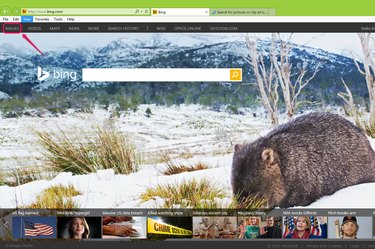
Click the Images tab or link on Bing or Google or go to Yahoo or another search engine of your choice to search for borders.
Video of the Day
Step 2
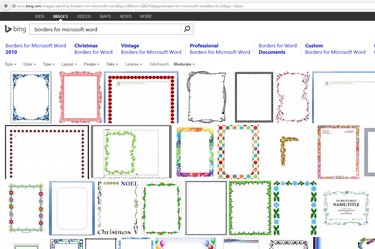
Type borders for microsoft word in the search box and click the Search button to populate the page with border images. You can be more specific in your search terms and search for floral, decorative, holiday-themed or any other type of border you need for your project. You can also search for specific-color borders or borders in rectangular or oval shapes only.
Step 3
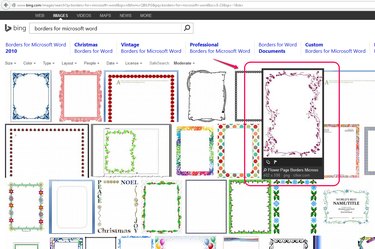
Select the border image you want to download from the list of results or hover your mouse over a border image for a close-up view. You can usually see the image's size in pixels in the close-up view. For good quality reproduction, choose a full-page size image -- about 800 pixels by 1000 pixels would work for screen-viewing or print purposes -- and tweak the size in Word. You can download a small image and resize it in Microsoft Word to stretch it to fit the page, but the image resolution may degrade. Instead, scale up a small image in an image-editing program for the best resolution when resizing images.
Step 4
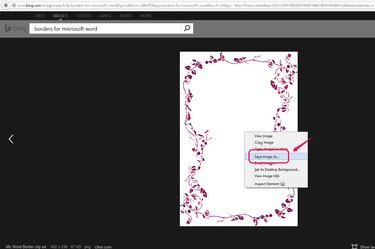
Click the preview image to view it at full size. Right-click the border and choose Save image as... from the drop-down menu. Depending on the search engine you use, you might see an option to go to the original website where the image is hosted or to zoom in on the image.
Step 5
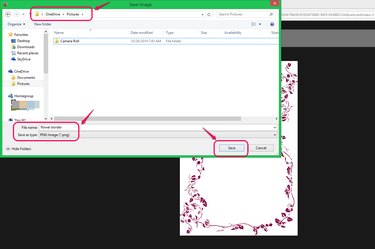
Select a location to save the border. You can rename the picture in the File Name text box and change the image format in the Save as Type section. Click Save to download the file.
Video of the Day