eHow launches Android app: Get the best of eHow on the go.

How to Change iPhone Settings

Video Preview

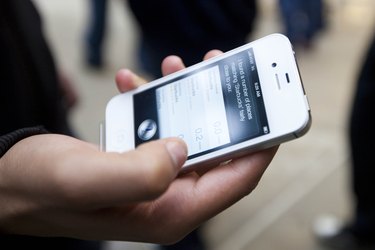
Summary: Learn how to change the settings on an iPhone along with the other great features that come with it in this free computers and modern electronics video clip.

Views:
2,643
Presenter
By Tony Ramirez
eHow Presenter

Electronics and media guru Tony Ramirez is known among his friends, family, and clients as Inspector Gadget. His love for new technologies aids in his ability to produce cutting-edge...read more

Post a Comment

Post a Comment

Video Transcript

"Even though I'm talking about this later on in the video, one of the things you should make yourself familiar with is the settings section. In here you're going to be able to change everything your ring tones, set up your wireless, all these things. If I would talk about all the things in the settings, this chapter would be twenty minutes alone so we'll just go through some of the basics. You have a sprocket here that says settings, so we'll click that and it will load our settings stuff. In here we have all our basic stuff; airplane mode, wifi, basic usage as far as minutes and whatnot, sounds, brightness, wallpaper. Anything general with the phone itself as far as hardware, setting up our mailbox, setting up our phone, setting up the Internet, the IPod photos, things like that, this is a great way to customize the phone in any way that you need. We'll click wifi, and this will bring up all the connections that are in my area. Right now, our batcave08 is the wifi I'm connected to, and we have a couple of other ones that are secured. These are probably in the buildings next door. We ca go back because we're already set up for that. Like I said, we have all these other ones. We can go to sounds, and in here we can put our vibrate on and off. Right now it's on, right now it's off; put it back on and it gives a little vibrate. We have our ring tones; we ca g through and see how these sound. Just like anything else, we can scroll through; let's click another one. We'll scroll through, and I'll put it back on what it was, just a standard doorbell. We'll go back and click the sounds button, and it takes us back, and we can customize any of the other sounds for anything else that we want. Our brightness, We can make the screen brighter, we can make it darker, whatever we want to do. We can change our wallpaper, set up our mailbox, set up our phone, anything that you want to do. When you get your iPhone, play with all these settings. There are tons of things that you can do with the phone to customize it the way that you'd like. Those are our basic settings. Once you're done click the main menu button, it takes you back, and you're pretty much done."

eHow Article: How to Change iPhone Settings

Related Ads

  • Have you done this? Click here to let us know.
Computers
Alexia Petrakos,

Meet Alexia Petrakos eHow's Computers Expert.

Get Free Computers Newsletters

Copyright © 1999-2009 eHow, Inc. Use of this web site constitutes acceptance of the eHow Terms of Use and Privacy Policy.   en-US Portions of this page are modifications based on work created and shared by Google and used according to terms described in the Creative Commons 3.0 Attribution License.

eHow Computers
eHow_eHow Technology and Electronics