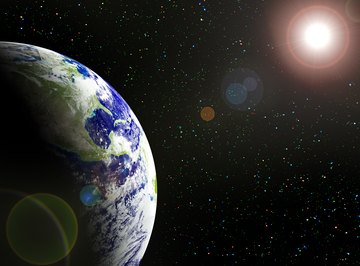

Rotation refers to movement or spinning around an axis. The Earth rotates around its own axis, which results in day changing to night and back again. The Earth actually revolves around, or orbits, the sun. One revolution around the sun takes the Earth about 365 days, or one year. Forces at work in the solar system keep the Earth, as well as the other planets, locked into predictable orbits around the sun.
TL;DR (Too Long; Didn't Read)
The earth rotates around the sun because of the sun's gravitational pull -- earth keeps moving forward, and the gravitational pull means it rotates around the sun. You can mimic the earth's rotation at home using a ball and string.
A Mighty Mass
The more mass an object has, the greater its gravitational pull on other objects. The most massive object in the solar system is the sun, which is actually one of the larger yellow dwarf stars in the universe. The sun’s mass is 1.98892 x 10 to 30th power kilograms. That’s about 333,000 times more mass than the Earth and more than 1,000 times more mass than the planet Jupiter. As a result, the sun has far more gravitational pull than any of the planets that revolve around it.
Gravitational Pull
Because the amount of gravity exerted by the sun is so much more than the Earth’s gravitational pull, the Earth is forced into an orbit around the sun. The sun’s gravity pulls the Earth toward it the same way it does to all the other planets in the solar system. It is similar to the way the Earth has captured the moon. Earth’s gravitational pull is far stronger than that of the moon, so the latter is forced into orbit around the former. But people know that gravity here on Earth causes objects to fall to the ground when dropped. They don’t orbit. Other forces are at work in space.
Other Forces
The Earth has velocity in another direction -- perpendicular to the gravitational pull exerted by the sun. The Earth initially gained this velocity as a result of the spin created when the solar system first began to take shape. Because space is virtually a vacuum, no friction exists to slow the Earth’s velocity. The sun’s gravitational pull is strong enough to keep a constant tug on the Earth but not enough to overcome the planet’s own sideways velocity. This places the Earth in a perpetual state of angular momentum relative to the sun. If the Earth had no perpendicular velocity, the sun’s gravity would quickly cause the planet to fall toward it and be destroyed.
The String Example
Illustrate angular momentum in action with a string and a ball that has a little weight to it. If you tie the ball to one end of the string and rotate the other end of the string around your head, you constantly pull the ball toward you with the string. You will observe, however, that the ball's velocity combined with your pull prevents it from falling to the ground. Instead, it orbits around your head. Let go of the string and the ball flies off in a straight line away from you, just as Earth would if the sun were not there.
References
About the Author
Robert Korpella has been writing professionally since 2000. He is a certified Master Naturalist, regularly monitors stream water quality and is the editor of freshare.net, a site exploring the Ozarks outdoors. Korpella's work has appeared in a variety of publications. He holds a bachelor's degree from the University of Arkansas.