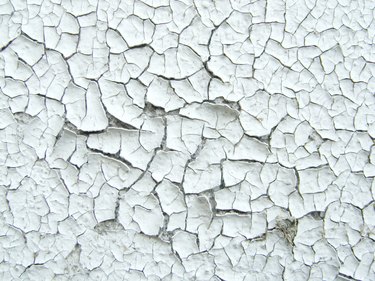
Spray paint is inexpensive and is available in a wide array of colors and finishes. Using spray paint on furniture and home accents can save you money, but an improper application of spray paint may leave a crackled texture on the surface that will cause the spray paint to flake off. Repair crackling paint by smoothing down and priming the surface of the furniture or home accent piece and applying the spray paint in the proper way.
Step 1
Sand the surface of the crackling spray-painted object, using medium-grit sandpaper. Move the sandpaper in small, circular motions to remove the flaking and crackling paint and to create a smooth surface. Bend the sandpaper to fit it into small crevasses and holes.
Video of the Day
Step 2
Brush off the sanded object, using a paintbrush to remove debris and dust caused by the sanding.
Step 3
Paint a thin layer of latex primer over the surface of the object, using the paintbrush. Allow the primer to dry for 6 hours. Latex primer prepares the surface of the object to accept spray paint more readily.
Step 4
Apply a new coat of spray paint in an even layer, holding the spray paint canister at least 12 inches away from the object as you spray. Allow the paint to dry for 4 hours.
Step 5
Apply a second coating of spray paint, as before, and allow the second coating to dry for an additional 4 hours.
Video of the Day