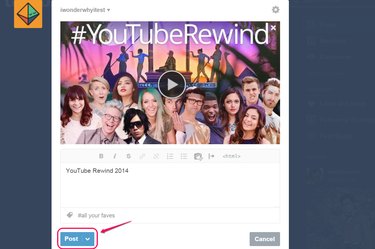
There are three different ways to share a YouTube video on Tumblr. No matter which way you choose, you can add text to the post as well as the video; the first two ways result in a video post, while the third results in a text post.
Sharing from YouTube
Video of the Day
Step 1
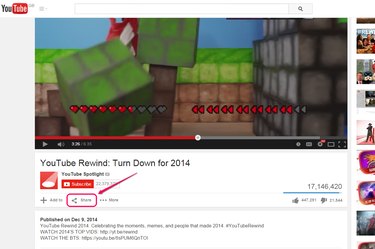
Open the video on YouTube and click the "Share" button.
Video of the Day
Step 2
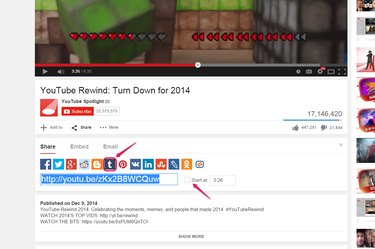
Click the "Tumblr" button to open a compose window for Tumblr. If you want to share only part of the video, enable the "Start at" check box before doing this.
Step 3
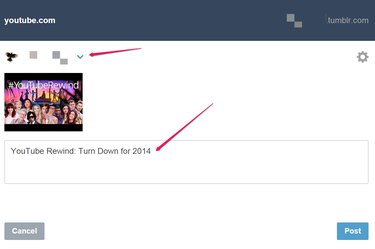
Select the blog to which you want to post the video using the drop-down menu, if necessary. The title of the video is, by default, added to the text field as a caption, although you can remove it or replace it with your own text.
Step 4
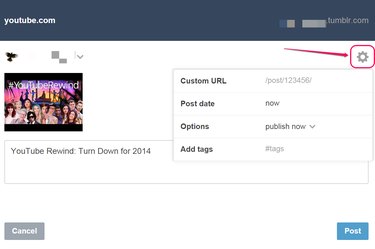
Click the gear icon to open a menu containing additional options. From here you can add tags, specify a post URL and choose to save the post as a draft or as private, or add it to your queue instead of posting immediately.
Step 5

Click "Post." Once the post has been created, you will see a confirmation screen -- at this point, you can safely close the window.
Video Post on Tumblr
Step 1
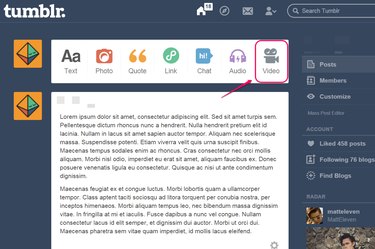
Copy the URL for the YouTube video, switch to your Tumblr dashboard and then click the "Video" button. If you want to share only part of the video, open the sharing options for the video on YouTube, enable the "Start at" checkbox and copy the URL from the text field instead.
Step 2
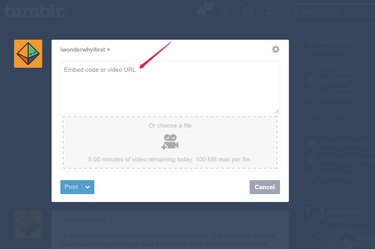
Paste the video URL into the "Embed Code or Video URL" text field. The YouTube video automatically loads into the posting screen, enabling additional options.
Step 3
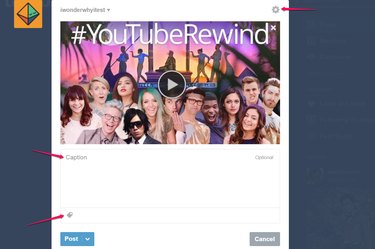
Type your text into the "Caption" field. If you want to add tags, type them into the "Tags" field as you normally would; to set a custom post URL, add a source link or enable photo replies, click the gear icon.
Step 4
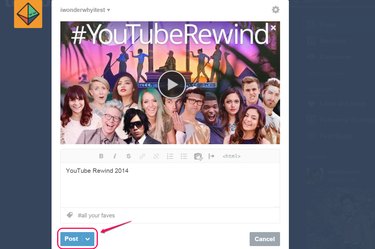
Click "Post" to save your changes and share the video to your Tumblr blog. Alternatively, click the down arrow on the "Post" button for more options, including saving as draft, posting privately, adding to the queue or scheduling the post for a specific time and date.
Text Post on Tumblr
Step 1
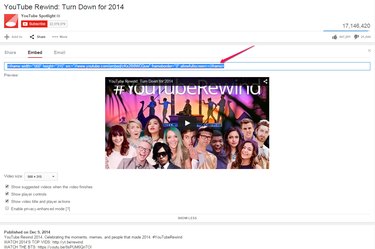
Open the sharing options for the video on YouTube and click "Embed." Adjust the various options to your liking, if necessary, and then copy the code in the text field.
Step 2
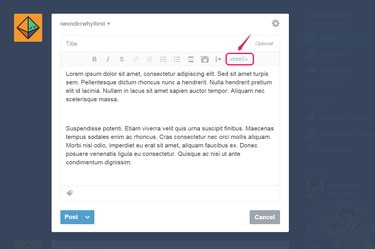
Switch to Tumblr and click the "Text" button to create a new text post. Compose the post as you normally would, leaving a space where you want to embed the video. Once you are done, click the "HTML" button. This switches the editor to HTML mode.
Step 3
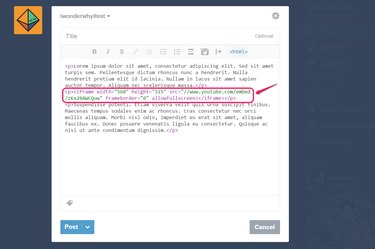
Paste the code you copied in the first step into the text field, where you want the video to appear. If you want to embed more than one video, repeat the process of getting the code and pasting it into the text post for each. Once you are done, click the "HTML" button again to return to normal editing mode.
Step 4
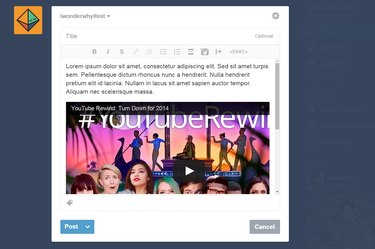
Add tags and adjust posting options, if desired, and then click "Post" to publish the post to your Tumblr.