If your computer seems slow, and you have already gone through making sure there are no viruses, spyware or adware on the system, it may be because your system needs more RAM. RAM is the short-term memory of the computer. It works with the processor to multi-task. RAM can easily be added to your system if you are not already at maximum capacity for your motherboard, and you have available slots. However, RAM can get expensive, and even after you max out your motherboard you may need more. Using a flash drive as RAM is a quick, easy and cheaper way to increase system memory.
Step 1
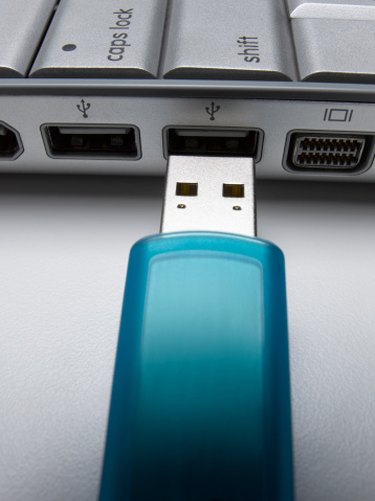
Insert your flash drive into a USB port. If you have auto-play enabled, there should be an option in the menu that appears that says, "Speed Up My System" that will allow you to enable ReadyBoost.
Video of the Day
Step 2
Click the "ReadyBoost" tab.
Step 3
To use the entire flash drive to increase RAM, click "Dedicate this device to ReadyBoost."
Step 4
To use less than the entire flash drive for ReadyBoost, click "Use this device" and move the slider to the amount of space you would like to use.
Step 5
Click "OK."
Step 6
Right click the drive letter, and choose properties.
Step 7
Look for the ReadyBoost Tab, and select it.
Step 8
Look for the option to enable the flash drive as RAM, and allocate the amount of space on the drive you wish to use as RAM. Remember, most systems max out at 4GB RAM. So if you have a drive larger than that, or 2GB RAM already, you need to remember this limitation so as to prevent damage to your system.
Video of the Day