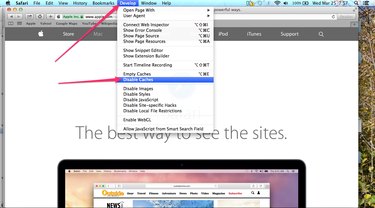
Safari uses its cache to store parts of Web pages so that they load faster the next time you visit them. Although you can't access individual files stored in Safari's cache, you can clear the cache and disable it using the Develop menu. In order to access the Develop menu, you need to enable it via the Preferences panel in Safari 8.
Step 1

Click Safari on the Apple menu along the top of your screen and select Preferences to open Safari's Preferences panel.
Video of the Day
Step 2
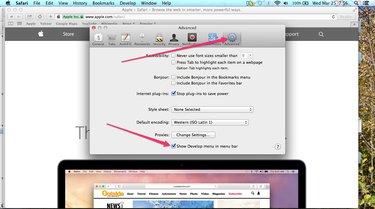
Select the Advanced tab and place a check mark in the Show Develop Menu in Menu Bar check box. Close the Preferences panel when you are finished.
Step 3
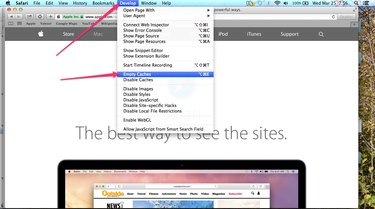
Click Develop on the Apple menu and select Clear Cache to clear all files and data currently stored in Safari's cache.
Step 4
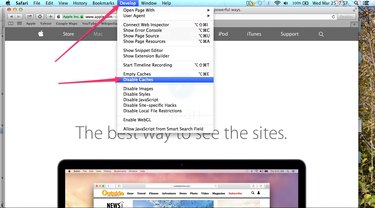
Click Develop on the Apple menu and select Disable Cache to prevent Safari from storing files in its cache going forward.
Video of the Day