Home Sweet Home
Hacks, Tips & Tricks
Squeaky Clean
DIY Decor
Carpentry & Remodeling
Maintenance & Repair
Green Thumb
All Home Sweet Home
Chow Down
Main Dishes
Sweet Treats
Snacks
Copycat Recipes
Drinks & Cocktails
Sides & Appetizers
Veggie Faves
Food Hacks
All Chow Down
Get Crafty
Sew Simple
Fun Crafts
Art Projects
All Get Crafty
Let’s Celebrate
Valentine's Day
St. Patrick's Day
Easter
Mother's Day
Father's Day
4th of July
Back to School
Halloween
Thanksgiving
Christmas
New Year
Weddings
Baby Showers
Birthdays
Parties & Events
Gifts
All Let’s Celebrate
JOIN OUR NEWSLETTER
JOIN OUR NEWSLETTER
Home
Let's Celebrate
Gifts
Gifts
By
Contributing Writer
Graduation Gift Ideas for Every Type of Grad
Let's Celebrate
By
Sophie Boudreau
15 Budget-Friendly Homemade Gifts from Etsy
Let's Celebrate
By
Sophie Boudreau
Unique Handwriting Gifts to Honor a Loved One
Let's Celebrate
By
Kathryn Walsh
Sweet Pie-Themed Finds to Celebrate Pi Day!
Let's Celebrate
By
Megan McCarty
Housewarming Gifts That Are Way More Exciting Than a Potted Plant
Let's Celebrate
By
Adrienne Farr
Handmade Kwanzaa Gifts to Reflect Each of the 7 Principles
Let's Celebrate
By
Fred Decker
These Cookbooks Are Perfect for Holiday Gifting
Let's Celebrate
By
Sophie Boudreau
Personalized Gifts for the Hard-to-Shop-for People on Your List
Let's Celebrate
By
Sophie Boudreau
Ultimate Guide to Handmade Gifts on Etsy: Part 1
Let's Celebrate
By
Sophie Boudreau
Quirky Handmade Gifts for Every Awesome Oddball on Your List
Let's Celebrate
By
Fred Decker
Game-Changing Holiday Gifts for Home Cooks
Let's Celebrate
By
Megan McCarty
Under-$30 Secret Santa Gift Ideas That Impress
Let's Celebrate
By
Megan McCarty
Thoughtful, Under-$30 Gifts for Hosts
Let's Celebrate
By
Fred Decker
13 Actually Useful Gifts for Bakers
Let's Celebrate
By
Spencer Hall
15 Gifts for Recent College Grads That Make Adulting a Little Easier
Let's Celebrate
By
Spencer Hall
10 Gifts for Recent High School Grads That'll Come in Handy
Let's Celebrate
By
Kelsey Pudloski
Need Gift Ideas? Nordstrom’s Cyber Monday Sale Has You Covered
Let's Celebrate
By
eHow Team
Grab These Walmart Cyber Monday Deals Before They're Gone
Let's Celebrate
By
eHow Team
The Best Online Sales to Shop This Weekend
Let's Celebrate
By
Kelsey Pudloski
These Cyber Monday Sales Aren't Over Yet!
Let's Celebrate
By
Onayeme Jelugbo
5 Awesome Etsy Gifts Made out of Recycled Materials
Let's Celebrate
By
Maya Marin
10 Black-Owned Etsy Shops for the Perfect Handmade Gifts
Let's Celebrate
By
Megan Beauchamp
Good Reads Make Great Kid's Gifts
Let's Celebrate
By
Georgann Yara
12 Winning Tips for Wedding Gifts
Let's Celebrate
By
Lisa Chiu
Holiday Giving: Charity That Can Be Year Round
Let's Celebrate
By
Wendy Rose Gould
Geek Chic: 10 Gifts for Him
Let's Celebrate
By
Catherine M. Lafuente
Gift Ideas for Someone Who Has No Hobbies
Let's Celebrate
By
Nicole Schmoll
Gift Ideas for a Crush
Let's Celebrate
By
Eric Ervin
Costume Contest Ideas for Prizes
Let's Celebrate
By
Cheryl Starr
Volleyball Gift Ideas for Senior Night
Let's Celebrate
By
Meredith Burgio
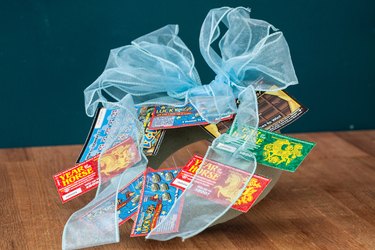
How to Make a Lottery Ticket Wreath
Let's Celebrate
By
Adrienne Davis
Gifts for Men Who Don't Do Anything
Let's Celebrate
By
Susan Lundman
Outgoing Presidency Gift Ideas
Let's Celebrate
By
Cortney Farmer
Gifts for a 22-Year-Old Girl
Let's Celebrate
By
Angie Sims
How to Inscribe a Bible to Someone as a Gift
Let's Celebrate
By
Michelle Watson
Ways to Give Out Prizes Randomly
Let's Celebrate
1
2
3
4
5
>
Report an Issue
Contact*:
Severity*:
High
Normal
Low
Description*:
Screenshot loading...
Cancel
Submit