
A Wi-Fi network is a wireless network that you can pick up from your laptop computer. Some wireless networks, such as those that belong to individuals, are commonly private and require a password to use. However, public Wi-Fi networks do not require a password but do require you to be in the right place. If you're a little too far from the network to get a good signal, there still are things you can do to pick up the Wi-Fi.
Step 1
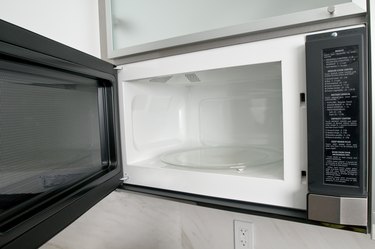
Move away from things that can block the Wi-Fi signal from your laptop computer. These include devices such as cordless phones and microwaves, which many businesses that offer free Wi-Fi have. Baby monitors, garage door openers and other wireless electronics can also interfere with signal reception.
Video of the Day
Step 2
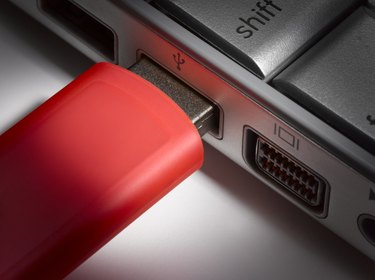
Get a new wireless PC card-based network adapter for your laptop computer. The replacement you use should be a USB wireless network adapter. The USB adapter must have an external antenna to pick up the Wi-Fi signal when you're further away from it.
Step 3

Put an external antenna onto your laptop computer in addition to the USB wireless network adapter. A high-gain external antenna will be most effective at picking up the Wi-Fi signal.
Step 4
Place a wireless repeater halfway between where you are and where you believe the Wi-Fi signal is strongest. This is not likely possible in a public place but can be used within a home.
Video of the Day