How to Send a Wake on LAN in Windows
Wake-on-LAN is an Ethernet standard that allows for computers to be turned on or brought out of sleep, hibernation or standby by sending a specially formatted data packet, called the "magic packet," to a single PC or group of computers. Microsoft's System Center Operations Manager 2007 can be configured to send wake on LAN packets. In order for target computers to respond to wake-on-LAN packets, the computer's BIOS must support and be configured for wake-on-LAN.
Things You'll Need
- Computer with Microsoft System Center Operations Manager 2007 software installed
Instructions
-
-
1
Configure Microsoft System Center Operations Manager 2007 for wake-on-LAN. Click the Windows "Start" button and then click "Programs." Click "System Center Operations Manager" from the displayed program window. The System Center Operations Manager 2007 console will open.
-
2
Open the site properties window. Click the site that contains the computers to send wake-on-LAN packets to under "Computers" in the left pane of the System Center Operations Manager console. The "Site Properties" window will be displayed.
-
-
3
Click the "Wake-on-LAN" tab in the Site Properties window. The Wake-on-LAN tab will display wake-on-LAN configuration options
-
4
Enable wake-on-LAN for the site. Check the "Enable Wake-on-LAN for this site" box to enable wake-on-LAN for the computers belonging to the site.
-
5
Select which type of wake-on-LAN packets to send. Check the "Use power on commands only" box and specify what scheduled activities will prompt the sending of power on wake-on-LAN packets. Check the "Use wake-up only" box and specify what scheduled activities will prompt the sending of "wake-up only" packets.
-
6
Select method of sending packets. Check the "Subnet-directed broadcasts" box if you would like to send wake-on-LAN packets to all computers in the site. Check the "Unicast" if you would like to send wake-on-LAN packets to only one computer.
-
7
Access the Wake-on-LAN advanced properties. Click on the "Advanced" button in the "Wake-on-LAN" tab's window. The "Wake-on-LAN Advanced Properties" dialog box will open.
-
8
Configure the number of retries that will be performed when sending wake-on-LAN packets by entering the desired number of retries in the Wake-on-LAN Advanced Properties dialog box.
-
9
Configure the delay between the sending of wake-on-LAN retry packets by entering the time delay in the Wake-on-LAN Advanced Properties dialog box.
-
10
Exit the site properties Wake-on-LAN configuration window. Click "OK" in the Wake-on-LAN Advanced Properties dialog box and then click "OK" in the Wake-on-LAN tab. The wake-on-LAN settings are now saved. Wake-on-LAN packets will now be sent to computers belonging to the selected site based on the scheduled activities that were configured to prompt the sending of wake-on-LAN packets in Step 5.
-
1
References
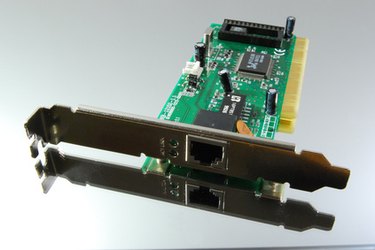
- Photo Credit network connection image by sumos from Fotolia.com