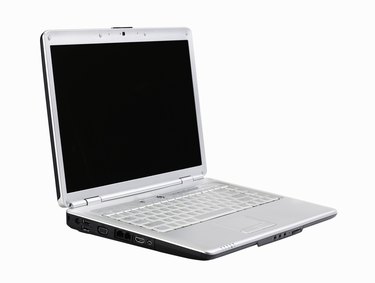
Trying to watch an online video or listen to music and not being able to hear the sound is annoying. Your computer was probably muted before the video or music started. There's several ways to unmute a Dell laptop. There's also the possibility that the music or video player is muted. Make sure the volume is turned up on the music or video player. Different Dell laptops have the same basic ways of turning the sound back on. Make sure you understand your Windows program, because you might need it to unmute your Dell laptop.
Dell Latitude
Video of the Day
It's easy to mute and unmute a Dell Latitude. The mute button is located above the F4 and F5 buttons on the keyboard. Press the mute button once if you don't notice any sound or music; this should unmute the sound if it was previously muted. Adjust the volume controls if you don't notice any sound after pressing the mute button. Volume controls are directly to the left of the mute button on Dell Latitudes.
Video of the Day
Dell Inspiron
Dell Inspirons have media-control devices located on the front. These buttons are directly below the mouse touchpad buttons. The mute button is the first button when looking at the group of buttons from left to right. Press the mute button once, if you still cannot hear anything, try adjusting the volume. Raise volume is the second button to the right of the mute button.
Windows XP
You'll need to adjust the volume settings with Windows if the buttons on your Dell laptop don't work. The quickest way is to find the speaker icon located on the right side of the task bar. Double-click the icon and the volume controls will open. Adjust the volume and make sure the mute button isn't on. If you cannot find this icon, adjust the volume by clicking Start on the bottom left hand corner of the screen. Point your mouse cursor in order to the following menus: "All Programs," "Accessories," "Entertainment," and finally "Volume Control." You can unmute and adjust volume from here.
Windows Vista
Vista lets you control the volume in a few simple steps. Locate the Volume Control icon in the Taskbar and double-click. Slide the Volume bar up and down to raise and lower the volume. The mute button is located on the bottom of the slider.