How to Make a Map With Multiple Flagged Locations
While you can make a new map for every flagged location, including multiple flags on a single map gives you a new way to communicate with your audience. You can create a map that explains a category of locations, such as all the museums on Museum Mile. Or create a tour for your readers. (E.g. Visit the farmers' market, eat lunch at location two and finish the day with a photo shoot at location three.)
Instructions
-
Paper
-
1
Buy or draw a map of a given region. Research map dimensions for hand-drawn maps by exploring the region or relying on trusted authorities such as the U.S. Census Bureau .
-
2
List the locations to be flagged. Separate different site categories onto multiple maps. (e.g. Place all restaurants on one map. Choose a second map for depicting museums). Opt for distinctive markers when combining different site categories on a single map. (e.g. Restaurants are red, houses are blue, etc.)
-
-
3
Place flags at specific locations. Use removable markers for educational and reusable maps. (i.e. push pins, velcro, magnets, light adhesive)
Community Walk
-
4
Navigate to the Community Walk website.
-
5
Type a region into the "Where Would You Like To Start" text field. Click "Get Started."
-
6
Follow the prompts. Confirm start point. Select a publishing option: published, shareable or private. Name the map. Press "Finish."
-
7
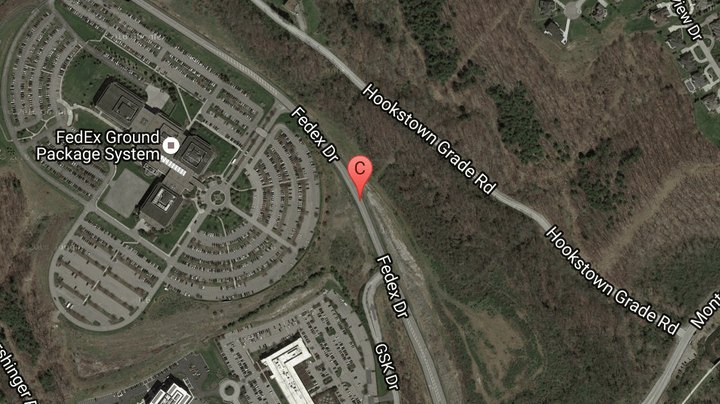
Press the "Add Marker" button at the top of the map window. Add flag by clicking the map, searching or entering a specific address. Give the marker a name in the "Title" field. Fill out description and category, if desired. Click "Save." Repeat.
Google Maps
-
8
Register with Google. If you use Gmail, Blogger or another Google service you already have an account.
-
9
Navigate to the Google Maps website and sign-in. Select "My Maps" from the left menu.
-
10
Press "Create New Map." Name the map and type a description in the left pane. Select "Save."
-
11
Click the blue "Add A Placemarker" icon at the upper-left hand corner of the map window; the pointer will turn into a blue teardrop. Click the map to drop the marker. Label the marker with a title and description. Press "Save."
-
12
Search for locations in the search bar at the top. Select "Save To" from the left menu under the location heading. Choose your map title from the drop-down menu. Save by pressing the "Save" button.
-
1
References
Resources
- Photo Credit Thumbtack in a map image by Nikolay Okhitin from Fotolia.com