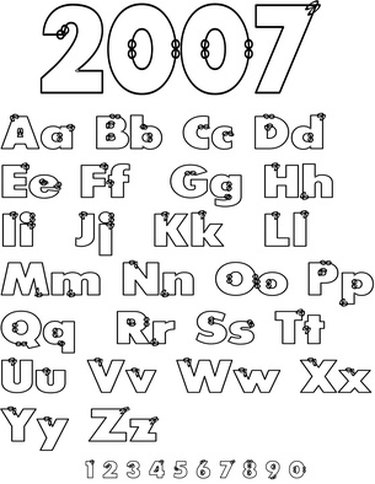
Microsoft Paint is a program that is included with every version of Microsoft Windows 7. The program lets users create images, as well as edit existing illustrations. Paint features include a pencil tool, line tool, curve tool, shapes, brushes and a text tool. Paint allows you to choose the font face, size and style of the text from the Text tool tab.
Step 1
Open Paint by clicking the "Start" button, typing "Paint" in the search box and clicking on it when it appears.
Video of the Day
Step 2
Click the icon for the Text tool represented by the letter "A," which is located in the "Tools" group under the "Home" tab in the Ribbon.
Step 3
Click the font face, size and style buttons to adjust the appearance of the text.
Step 4
Move the cursor in the drawing area to the location you want to insert text, click and begin typing.
Step 5
Click existing text in the drawing area to select it and adjust its appearance from the Text tool located in the Ribbon.
Video of the Day