Unlike Word, PowerPoint 2013 doesn't include a tool to help generate an index. To index keywords in a presentation, you'll have to find and note each word's appearances manually, and optionally add links. Creating a table of contents offers a faster alternative if you need to only index card titles and bullet points.
Write an Index
Video of the Day
Step 1: Start the Index Slide
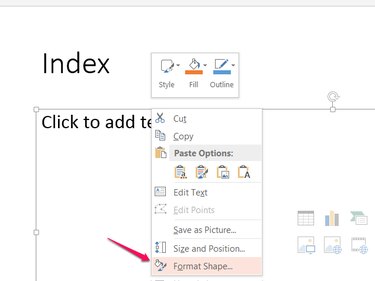
Add a new slide to the end of your slideshow, and title it Index. Right-click the main text box on the slide and choose Format Shape.
Video of the Day
Step 2: Add Columns
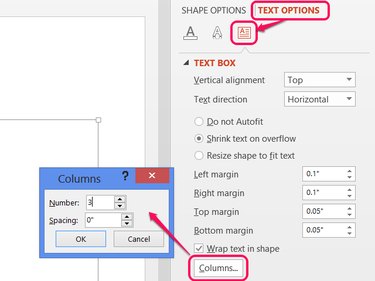
Open the Text Options section on the sidebar, click the Textbox icon and press the Columns button. Increase the number to add columns to your text box. The more columns, the more entries fit on one slide, but the less horizontal space you'll have for each. Setting the number to 2 or 3 works well in most cases.
Step 3: Write the Index
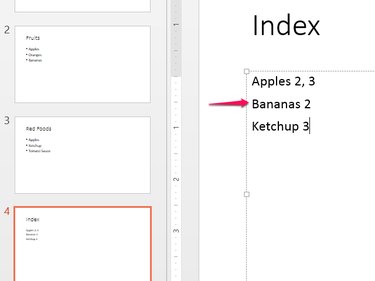
Type the words for your index alphabetically, one per line, and add the slide numbers after each. As each column fills, PowerPoint automatically moves to the next column.
Use the Find window (Ctrl-F) to search for the slides where each keyword appears. The slide previews along the left side of the screen also help you locate words in your slideshow.
Step 4: Add Links
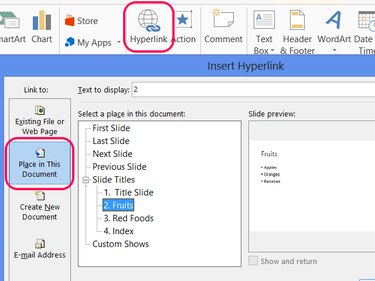
Select a slide number written in your index and click Hyperlink on the Insert tab. Choose Place in This Document, select a slide and click OK to create a link. Repeat to link any or all of the slide numbers in your index.
Add a Table of Contents
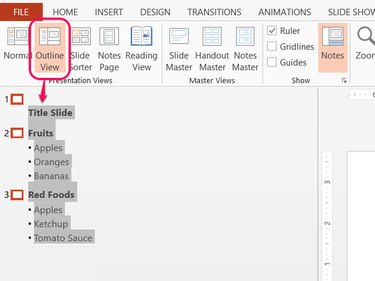
PowerPoint's Outline View lets you copy slide titles and bullet points in bulk, making tables of contents much faster to create than indexes. Open the View tab and choose Outline View. Select the entire outline and press Ctrl-C to copy it.
Paste the outline (Ctrl-V) into a text box on a blank slide, add slide numbers and tabs as needed, and you've got your table of contents. Optionally, add hyperlinks using the method in the index section.