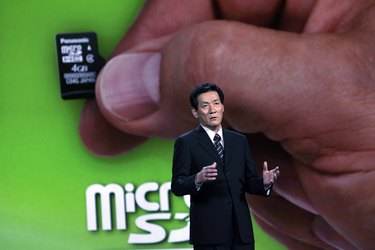
A storage medium roughly the size of a human fingernail, the microSD card is compatible with all SD compliant devices. It is commonly used in cellphones and is capable of holding any file format, just like regular SD cards, as long as there is enough space on the card. If your microSD card becomes full, it's time to delete some data. Deleting data on a microSD card is similar to a regular SD card, though you may need a microSD to SD adapter to complete the process.
Step 1
Locate the SD card slots on your PC. If your PC lacks an SD card slot, you need an SD to USB adapter as well as a microSD to SD adapter.
Video of the Day
Step 2
Remove the microSD card from the device using it and insert the card into the micro SD to SD adapter.
Step 3
Insert the micro SD to SD adapter into the SD card slot of your PC. If you are using a SD to USB adapter, connect this with a USB cable to your computer's USB port and insert the microSD to SD adapter into the SD to USB adapter.
Step 4
Click the Start button on the taskbar and open "Computer" or "My Computer".
Step 5
Locate the microSD/SD card listed in the "Computer" or "My Computer" menu and open it by double-clicking the icon.
Step 6
Press Ctrl+A to select all the files on the card, if you wish to delete everything; or hold Ctrl while clicking individual files in order to select more than one file, but not all.
Step 7
Press "Delete" when you finish choosing the files you want to remove from the card. Confirm that you want to delete the files. To delete the files from your PC completely, you must delete them from your Recycle Bin.
Step 8
Close the window when finished and remove the SD card adapter with the microSD card from your PC. You can now put the microSD card back in the device and use it as you normally would.
Video of the Day