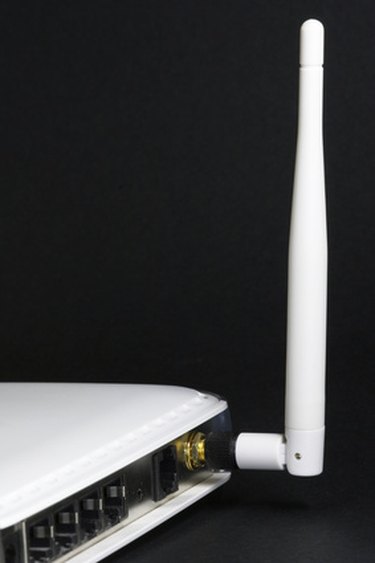
How to Set Up a Belkin Wireless Modem
Belkin wireless modems are designed to be used in the home or in small corporate and education environments. Belkin wireless modems are designed to support the 802.11 wireless Internet protocol and support web-based configuration and a minimum of four Ethernet ports for hard-wired connections. The modems are designed to support both the OS X and Windows operating systems. If you choose to purchase a Belkin wireless modem, you will need to set up the modem before using with your personal computer(s).
Instructions
-
-
1
Turn off the DSL or cable modem by removing the power cable or depressing the "power" button.
-
2
Connect the Belkin wireless modem into the back of the DSL or cable router by plugging an Ethernet cable into the port labeled "WAN" on the back of the router after connecting the cable to the modem.
-
-
3
Insert an Ethernet cable in the back of the Belkin router and connect the opposite end to the computer's Ethernet port.
-
4
Turn on the Belkin modem. After the modem is on for a minimum of ten seconds, turn on the power to the cable or DSL router.
-
5
Restart your computer and open the web browser after computer restart has completed.
-
6
Enter "192.168.2.1" in the web browser address bar followed by the "Enter" key. The Belkin Wireless modem configuration panel will then load in the web browser.
-
7
Choose the "Initial Setup" menu button, then select the computer's Internet connection type. Most Internet Service Providers (ISPs) use "Dynamic IP" for address allocation for home router usage. Select the connection type that is provided by your ISP, followed by the "OK" Menu button.
-
8
Select the "Channels and SSID" menu option on the primary router configuration screen and enter a unique name for the wireless network under the "SSID" menu option. Click "OK."
-
9
Select the "Security" menu tab on the primary configuration menu and select the security type that you want to use for network configuration followed by the "Next" menu button. "WPA" is a common security protocol for home network security.
-
10
Enter a network key or passphrase for the wireless, click the "Next menu button, then "Save Changes" to complete the Belkin modem configuration.
-
1
References
Resources
- Photo Credit wireless home network image by jaddingt from Fotolia.com