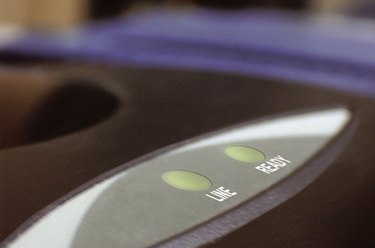
If your computer cannot detect your modem, you will not be able to access the Internet. If you are using a wired or wireless connected network, you will know if the modem is not recognized because you will not see your network or modem manufacturer listed in your network settings menu. There are various issues why your computer is not detecting the modem. Most likely, software updates need to be performed to fix this issue.
USB-Connected Modems
Video of the Day
Step 1
Unplug the USB modem from your computer.
Video of the Day
Step 2
Restart the computer. Plug the USB modem back into the USB port on your computer (preferably a USB port different than the original).
Step 3
Click on the wired or wireless access link on the status bar located on the right of your screen to see if your modem is detected (icon looks like a Wi-Fi signal or a plug in front of a monitor).
Step 4
Navigate to your "Start" menu "Control panel," "Hardware settings" and "Device manager." Navigate to "Modems" or "Network adapter." Right-click with your mouse and select "Properties." Navigate to the "drivers" tab and check if the drivers are listed as up-to-date or out-of-date. If the driver is outdated, you will need to update it. Navigate to your manufacturer's website using someone's computer with Internet access and download the latest driver for the modem to a USB flash driver or burn it to a DVD or CD.
Step 5
Install the driver software to your computer. Make sure the USB driver is connected during installation.
Ethernet-Connected Modem
Step 1
Unplug the modem from your wall outlet. Keep the modem unplugged for approximately 30 seconds. Reboot your computer.
Step 2
Plug the modem back into the wall and restart your computer. Attempt to access the Internet or press the network status icon located on the right corner of your status bar. (Icon looks like a Wi-Fi signal or a monitor with a plug over it.)
Step 3
Press and hold the reset button either located on the back or bottom of your modem. Keep the modem held for approximately 10 to 30 seconds. You will need a pointed object like a gem clip to press the reset button.
Step 4
Reboot the computer. Attempt to access the Internet to determine if your modem has been detected. Install any installation software that came with your modem.
Step 5
Update the driver or firmware for your modem by accessing the manufacturer's website and navigating to the support link. There should be a software tab that allows you to download any updated drivers or firmware for the modem. If you have no Internet connection, you will have to use a friend's computer to download the file to a thumb drive or to burn to a CD that can be installed to your computer. Extract and install the software on your computer, ensuring the modem is connected to your computer. Check to see if the modem is detected.