Microsoft Publisher 2013 has many, though not all, of the same editing tools available in Word to edit the text in a document. While Publisher doesn't include certain Word features like the ability to track changes and add editor notes to a document, it does offer advanced layout options that make it ideal when setting up a document for printing.
Changing Font Attributes
Video of the Day
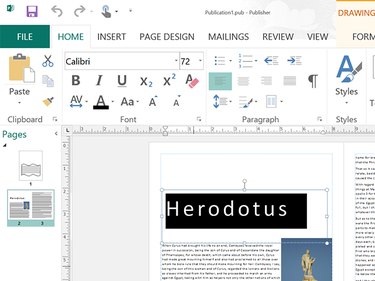
To change a Font, Font Size, or Style, highlight the text you want to change by dragging the cursor across it, then click the Home menu. Using the Options in the Home ribbon that appears, change the Font, Font Size, Font Color, and apply Italics, Bold or Underlines to the words.
Video of the Day
Using Styles
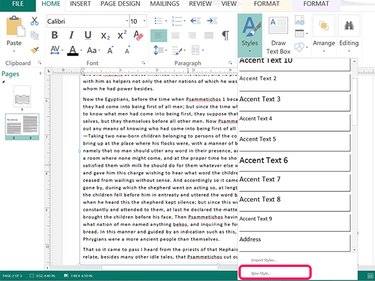
Clicking the Styles icon in the Home menu allows you to change multiple aspects of the font at once, including the font style, size and color. To create your own style that you can use over again in other documents, click the New Style option at the bottom of the Styles drop-down menu.
Using Spell Check
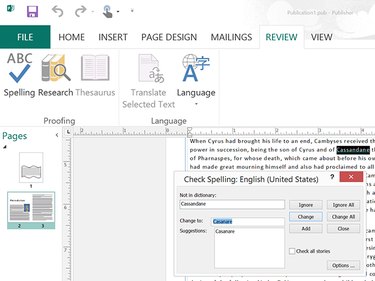
Microsoft Publisher 2013 offers the same Spelling feature as other Office apps. To check the spelling of a document, click the Review tab and select Spelling. The Spelling tool goes through every word, prompting you for an action.
- Ignore ignores this single instance of a word.
- Ignore All ignores every instance of a word in the document.
- Change changes the word to the suggestion you click, or a new spelling that you type yourself.
- Change All changes all instances of a word with the change you specify.
When Publisher's AutoCorrect is enabled — which it is by default — misspelled words are underlined. To fix the spelling, right-click the underlined word and select the suggested spelling replacement.
Find and Replace
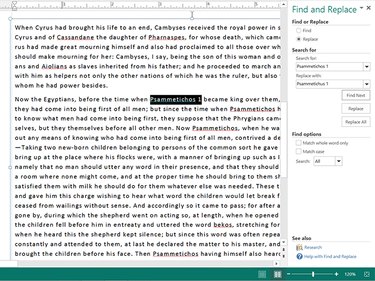
To find a word, or to find and replace words, click the Home tab and then click the Editing menu. Once you select either Find or Replace, a new window opens on the right. You can toggle between Find and Replace by clicking the Radio buttons at the top of this window.
To find a word, type the word in the Search field and click Find Next. Each time you click the Find Next button, Publisher will take you to the next instance of that word.
To replace one word with another, type the word you're looking for in the Search field and its replacement in the Replace field. You can then click Find Next and decide if you want to click the Replace button for each occurrence of the word, or click the Replace All button to replace the word wherever it appears in the document.