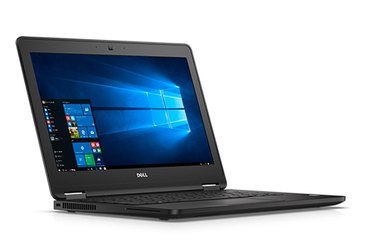
You should be able to restore most Dell Latitude models to its factory default settings using Dell's Factory Image Restore partition and Backup and Recovery application.
Using Factory Image Restore
Video of the Day
Step 1: Back up your personal data
Back up any data you wish to save. No matter which Latitude model you have or which operating system you're running, your personal data and settings will be deleted during the restore process.
Video of the Day
Step 2: Remove peripherals
Turn off and disconnect all peripheral devices except the monitor, mouse and keyboard. Connect the power supply to your Latitude.
Step 3: Open the boot options
Start up your computer and press the F8 key several times when the Dell logo appears. This opens the advanced boot options menu.
Step 4: Repair your PC
Select Repair Your Computer using the arrow keys on your keyboard, then press Enter. From the System Recovery Options menu, select a keyboard layout, click Next, and then log in as either a local user or an administrator.
Step 5: Select Dell Factory Tools
Select Dell Factory Tools and then Dell Factory Image Restore if required by your computer's configuration. Some models will go directly to the Next option to open the Confirm Data Deletion menu.
Step 6: Restore your system
Click the check box for Yes, reformat hard drive and restore system software to factory condition and click Next. The restore process begins and gives a message when complete. Click Finish to restart the computer. Restore data and files if you are recovering the laptop for personal use.
Using Factory Recovery Media
When your hard drive fails, the system restore partition may no longer be accessible. Factory recovery media will allow you restore to defaults after reformatting or replacing your hard drive.
Step 1: Insert the recovery disk
Be sure your Latitude is connected to its power supply and not running just on battery. Insert a recovery media disk into the optical drive or a USB recovery key into a USB port.
Step 2: Select the boot options
Power on your computer and press the F12 key several times when the Dell logo appears. Select your backup media location. You may be prompted to press a key to start a CD or DVD boot.
Step 3: Run the recovery app
The Dell backup and recovery application opens. Click Next to proceed to the hard drive diagnostics and click Next when it completes. The application runs Smart Repair. Click Next again when it completes. Smart Repair will attempt an instant restore if no problems are found. If the instant restore is successful, you will be prompted to restart your computer.
Step 4: Perform the factory reset
Select Factory Reset from the Advanced Options screen. The application presents the opportunity to back up data and settings. Click Next to perform a backup or press Skip to proceed without. The restore process starts after either of these options, proceeding to completion before prompting you to restart your Latitude. Finish restoring your computer using Windows when the computer reboots.