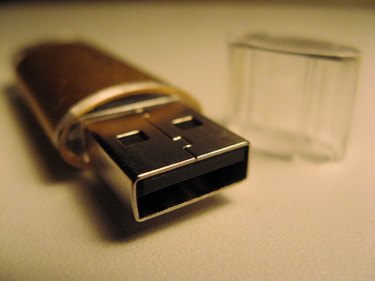
Many ways exist to copy or record a video to a flash drive. For any video file readily available for transfer, you can simply copy and paste it to the flash drive. For a video coming from an external source such as a camera, you must first digitize the video by capturing it using video-editing software. You may prefer to save the file directly to your flash drive or save it to the computer's hard drive first, then simply copy and paste the captured video file. For an edited video, you can directly export the video file to your flash drive.
Copy and Pasting a Video File
Video of the Day
Step 1
Locate the USB port in your computer or laptop and insert the flash drive into it. Wait for the computer to recognize the external device, then double-click the flash drive icon. The flash drive window appears.
Video of the Day
Step 2
Select the video file in your computer that you want to copy to your flash drive. Highlight the video file, click "Control C" to copy and then click "Control C" in your default flash drive window to paste the video file there. Another way is to either drag the file to the opened flash drive window or right-click the file and use the copy and paste option.
Step 3
Wait for the copy and paste process to finish. Copying time depends on the size of the transferred file.
Direct Recording of Video to the Flash Drive
Step 1
Locate the USB port in your computer or laptop and insert the flash drive into it. Wait for the computer to recognize the external device. Open your video-editing software to capture or digitize the video from the camera and record it directly to the flash drive.
Step 2
Select your scratch disk by going to your menu and finding the "System Settings." The scratch disk is the destination drive where you will save the captured video files. Click "Set" and the computer will prompt you to a window where you can choose you're scratch disk. Choose the flash drive for this purpose.
Step 3
Connect your camera to your computer using an applicable media cable. From your editing software, click the "File" menu and select the "Capture" option. Start recording the video from the camera by clicking the "Record" button. The button name or record icon differs depending on the video-editing software used. After the real-time recording, you can check your scratch disk, in this case your flash drive, for any video file you captured.
Exporting a Video File Directly to the Flash Drive
Step 1
Locate the USB port in your computer or laptop and insert the flash drive into it. Wait for the computer to recognize your external device. Open your video-editing software to export the edited video into your flash drive.
Step 2
Click the "File" menu and select "Export."
Step 3
Choose a file name for your file, then select the flash drive as your destination for the new file. Click the "Save" button to start the exporting process. Exporting time depends on the size of the file.
- SanDisk: Copying Files to a SanDisk Cruzer USB Flash Drive from a Mac
- Backup4all: USB Backup
- Scug.org: How to Copy Files to a Flash Drive--XP
- University of Delaware: How to Back Up Data to a USB Flash Drive
- All Business: Technical Setup for Direct-to-drive Video Recording
- PVR Wire: Gefen PVRs Record to USB Flash Drive