Gordon Swanson/iStock/Getty Images
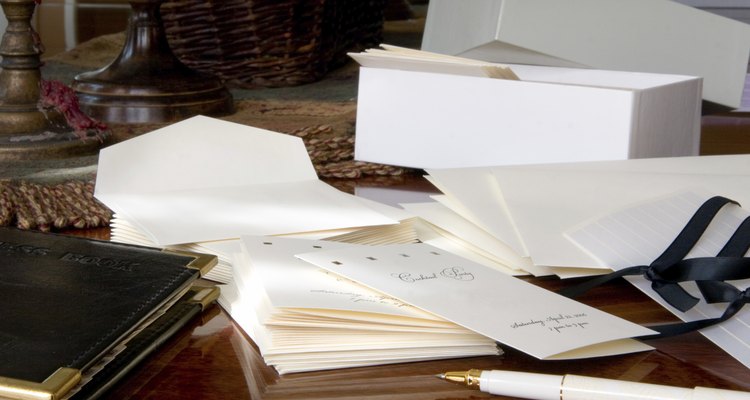
Months of preparation and thousands of dollars go into planning your dream wedding- one that could be missed by many of your guests if they are driving around looking for the ceremony site. Create a wedding map showing guests where the important venues are. The map should fit into the invitation and should be printed on matching or coordinating paper. The map should have large, easy-to-read road names but not be too cluttered with unnecessary information. Computer-generated maps from websites are the most accurate and legible.
Computer-Generated Maps
Go to a mapping website such as GoogleMaps, MapQuest or WeddingMapper.
Go to the “Get Directions” portion of the site. Enter in the addresses of your wedding venues, such as the ceremony site, reception site and host hotel, and any nearby airports. Click the corresponding button to create the map.
Click to print the map or print it as a PDF file and save to your computer. Look for print options to ensure you leave off any local attractions the site may suggest on the map. You also can email the map to your invitation printer for the company to print.
Hand-drawn Maps
Print out two to three copies of the computer-generated map.
Place a piece of paper on a work surface. Lay a sheet of transfer paper on top of the blank sheet. Place the printed map over the transfer paper. Clip a small paper clip at the corner to ensure the pieces do not slide.
Take your pen and trace along the major roads of the map. Apply a medium amount of pressure. Lift a corner of the transfer paper gently to check to see if it is transferring the marks to the bottom paper. Be sure not to shift the papers.
Trace the roads you wish to feature on the map. Mark the location of the venues with a small point. Lift the map and transfer paper from the bottom sheet after you have finished with the roads.
Draw a graphic at the marked points to correspond with the venues. For example, draw a church for the ceremony site. Add any details at this time.
Scan the finished product and have it copied onto paper that coordinates with the size and color of the invitations.
Related Articles

Invitations to Make & Print at Home for ...

How to Make Animal Print With ...

How to Send a Free Birthday Greeting
How to Make Wedding Invitations on a Mac

How do I Design a Church Directory?
The Standard Size for Wedding ...

How to Find a Telephone Number in New ...

Checklist to Plan Your Wedding in 4 ...

How to Map German Surnames

Save the Date Postcard Etiquette

How to Find a Wedding Registry at Target

How to Block Numbers on a LG Phone
How to Change Your Name After Marriage ...
Different Types of Invitations
How to Make an Iron-On Decal

How to Invite Friends for a Casual Lunch

How to Write an Invitation to Elected ...
Office Depot Iron-on Transfer ...
How to Make a Rhinestone Template

How to Organize a Wedding Fair
References
Writer Bio
Caroline Baldwin, a corporate communications director located in South Carolina, began writing in 1998. Her work has been published in publications across the United States and Canada including Rolling Stone, Boating Life, Waterski and Wakeboarding magazines. She holds a Bachelor of Arts in communication studies from The College of Charleston.
Photo Credits
Gordon Swanson/iStock/Getty Images