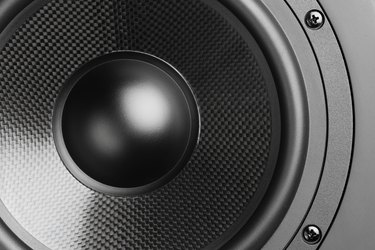
The simple answer to that question is: to produce sound. Every computer produces sound but some do it better than others.
Basic Reasons for Sound
Video of the Day
The most basic reason for computer sound is notifications, like when you receive an email or when you attempt to open a window or close a file when you can't really do that. Maybe the best function of a computer speaker is music and other audio.
Video of the Day
How Sound Works
Many computers come with a speaker as part of the motherboard, which means there is no sound card or amplifier included but you can still hear low-quality sounds from the computer's onboard speaker or through headphones. If the computer has either a sound card or amplifier it means the computer puts out better sound quality as is, without having to add additional speakers.
Adding Speakers
If you want to upgrade sound quality, tone and volume, attach additional speakers. When you have a sound card or amplifier, you can do this with a USB connection. Just attach the USB connector to a USB port on your computer and sound happens. If the speakers you want to connect have their own power source, connect the power to an electrical receptacle on the wall or power strip, then plug the 3.5 mm jack to the "audio out" connector on the back of the computer. For a system with a subwoofer and two other speakers, attach the jack from the subwoofer to "audio out," then connect the other two speakers to the subwoofer. To connect Bluetooth speakers, turn them on and find "Add a device" in Windows. Windows will walk you through setup. You may also want the user's guide for the speakers to know the process for sending the the speakers into pairing mode. The standard procedure is to hold down the button on the speaker with a Bluetooth symbol until the light next to it starts blinking.