Your Windows 8 computer has a native Photos app designed to help you download pictures from any digital camera, including all Canon models. If your computer doesn't recognize your camera, take a moment to troubleshoot the connection and, if necessary, install new drivers and software. Once your computer recognizes your camera, download pictures using the Photos app.
Troubleshoot Your Camera Connection and Drivers
Video of the Day
Step 1
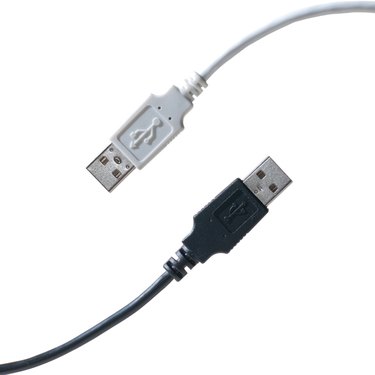
Check your USB cable connection and reconnect your camera to your computer. Most Canon cameras have mini USB ports into which you connect the small end of a provided USB cable. Depending on your camera model, you may have to open a rubberized or plastic cover to reveal this port. Check the camera's documentation for more information on connecting the camera to a computer.
Video of the Day
Step 2
Press "Windows-X" and click "Device Manager." Look for your camera on the list of devices in Device Manager to determine whether the computer recognizes the camera when it's connected. If it's not listed, check for new drivers and software.
Step 3
Visit the Canon support website (link in Resources) and select whether you're using a consumer or professional camera. Enter your model name in the Search field. Select your camera on the list of search results and click the "Go" button to visit the camera's Drivers & Software page. Select your operating system, download the provided file and open it on your computer to install the updates. You may be prompted to restart your computer after installation completes.
Downloading Pictures Using the Photos App
Step 1
Click the "Photos" tile on the Windows 8 Start screen to launch the Photos app.
Step 2
Right-click anywhere within the app and select "Import" on the pop-up menu.
Step 3
Select your Canon camera from the list of available devices.
Step 4
Select the pictures you want to download or click "Select All" to download all the pictures from the camera.
Step 5
Click "Import" to download the selected pictures onto your computer.
- Windows: Import Photos and Videos From a Camera, Phone, or DVD
- Canon: Downloading Images From a Card Reader Using ImageBrowser EX
- Canon: Procedure for Checking to See if a Firmware Update is Available
- Canon: How to Access Device Manager in Windows 8
- Canon: Support & Drivers
- Microsoft Support: Update Adds Support for New Camera Models in Windows 8.1 and Windows RT 8.1
- HP: Using and Troubleshooting Memory Card Readers (Windows 8)