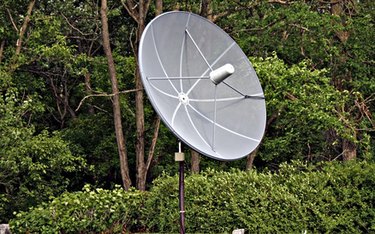
"Free to Air" (FTA) Satellite Receivers allow viewers to receive unencrypted FTA transmissions and watch satellite television legally and without subscription contracts. The Viewsat Lite FTA Receiver, when paired with a standard TV satellite dish, will give the viewer access to thousands of different satellite TV channels free of charge. Whether installing a new system or updating your current satellite receiver, the necessary receiver-specific firmware is available for download online or through the receiver manufacturer. Firmware options and updates are also available for download and installation to optimize performance and keep the receiver operating efficiently.
Things You'll Need
Video of the Day
- One or more antennas installed (with appropriate LNBs and switches)
- USB flash drive
Video of the Day
Downloading Firmware Files
Step 1
Download the most recent FTA receiver firmware for the Viewsat Receiver model you wish to set up or upgrade. The ZIP file filename will contain the year, month and date (yymmdd format).
Step 2
Extract the firmware PGM image file from the downloaded ZIP file to the PC hard drive (.PEG extension).
Step 3
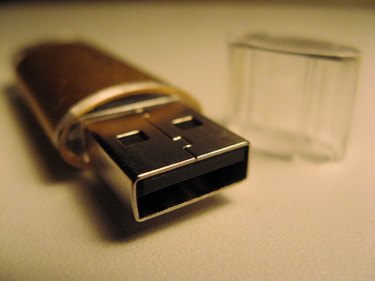
Copy the PGM file to an empty, formatted USB flash drive.
Installing Receiver Firmware
Step 1
Locate the main power switch on the back of the receiver and turn the receiver OFF. Insert the flash drive containing the PGM file in the USB port on the receiver and turn the receiver ON using the main power switch.
Step 2
Use the receiver remote and turn the receiver ON. A message will appear on the screen indicating the USB port initialization.
Step 3
Display the Main Menu using the "MENU" button on the remote and enter your PIN if prompted; the default is 0000. Select the "User Settings" option, choose "Factory Default - Yes" and press "OK." This is necessary only for a new setup.
Step 4
Select the "System Information" option, choose "Receiver Upgrade > USB" and press "OK."
Step 5
Select the firmware .PEG file from the USB directory and press "OK." The message "I.n.S.t." will be displayed on the receiver during the file transfer process. Do not interrupt the file transfer process.
Step 6
Wait until receiver reboots and displays either 00.00 or a channel number. Bring the receiver out of standby mode if necessary by pressing the remote control's red power button. Wait thirty seconds and turn the receiver main power switch off, wait thirty seconds more and turn the main power switch back on.
Tips & Warnings
- Windows XP, Vista or Windows 7 will allow extraction of the firmware file from the downloaded ZIP file. Other operating system users will need to use a program such as WinZIP or WinRAR.
- Firmware files for Viewsat receivers can be downloaded from numerous sites online -- some require paid subscriptions and others require registration or are free of charge, depending on the level of support that you choose.
- To avoid possible irreversible damage to the receiver do not interrupt the "Receiver Upgrade" file transfer process between the USB flash drive and the receiver.