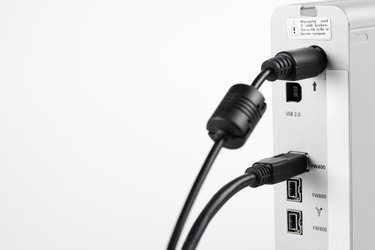
Partitions are a useful way to separate different types of data on a hard drive, including separating backups from data storage or restricting access to certain files. A Seagate external hard drive is pre-formatted with one NTFS partition, which may limit its usefulness for some users. However, it can be divided into as many partitions as you wish, with either Macintosh or Windows partition schemes and file systems. Mac OSX users can read but not write to an NTFS partition. To write to the partition with a Macintosh, the Seagate external hard drive requires preparation with Macintosh Disk Utility, while Windows Disk Management is used to create partitions in the Windows operating system environment.
Windows Disk Management
Video of the Day
Step 1
Plug the Seagate external hard drive into an available port on the computer.
Video of the Day
Step 2
Click the "Start" menu button located in the lower left corner of the Windows desktop.
Step 3
Click the "Control Panel" button from the right side of the pop-up menu.
Step 4
Click the link for "System and Security" then "Create and Format Hard Disk Partitions" located under "Administrative Tools." The "Disk Management" window pops up with a list of the drives and their current partitions and file system information.
Step 5
Right click the unallocated space on the Seagate external hard drive and select "New Simple Volume" from the pop-up window. Unallocated space may be indicated by a black bar and allocated space by a blue bar, as shown by the key at the bottom of the Disk Management window.
Step 6
Click "Next" in the "New Simple Volume" wizard then enter the size of the partition you wish to create in megabytes and click "Next."
Step 7
Enter a drive letter for the new partition or accept the default and click "Next."
Step 8
Select the formatting option; either click "Next" to format the partition, or select "Do Not Format This Volume" then click "Next."
Step 9
Click "Finish" to start the partitioning process if you did not choose to format the partition.
Step 10
Select the desired options if you are formatting the partition and click "OK" twice to begin the process or click "OK" to accept the default options then "OK" again to format and partition the drive.
Macintosh Disk Utility
Step 1
Connect the Seagate external hard drive to your Macintosh computer.
Step 2
Launch the Macintosh Disk Utility program.
Step 3
Select the Seagate external hard drive from the list on the left side of the Disk Utility window.
Step 4
Click "Partition" in the box on the right side of the window.
Step 5
Select the number of partitions you want to create on the Seagate external hard drive from the "Volume Scheme" drop-down menu.
Step 6
Select each partition and enter a name, select a format, enter a size in megabytes and select or deselect the check-box to install the Mac OS drivers.
Step 7
Click the "Options" button to select PC Partition Scheme to enable a partition for use on a Windows computer.
Step 8
Click the "Partition" button twice to begin the partitioning process.