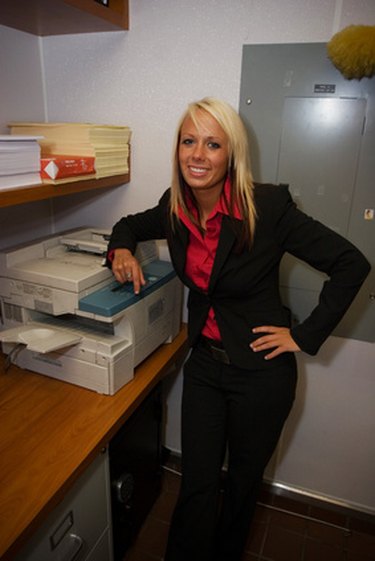
While you can find free recycling for inkjet cartridges and toner cartridges, drum cartridge recycling is more rare. Drum cartridges help distribute toner evenly in print and photocopy machines, and the cartridges cannot be recycled along with the toner cartridges. Removing the spent drum cartridge is easy and recycling it helps keep waste out of landfills.
Step 1
Open the door on your photocopier machine by pressing the appropriate button.
Video of the Day
Step 2
Grasp the end tab of your drum cartridge and pull it up and out to remove it from the machine. Then close the door on the machine.
Step 3
Check with your drum cartridge's manufacturer regarding their policy on recycling drum cartridges. Xerox takes cartridges back for recycling, but Sharp does not.
Step 4
Print off a prepaid shipping label from your drum cartridge's manufacturer. This allows you to send the cartridge for recycling without having to pay. Typically, you'll be able to print this off from the manufacturer's website or request one via email. You can contact the company directly by phone if you experience problems obtaining a label.
Step 5
Place the drum cartridge in a padded shipping mailer. Attach the prepaid label. Drop off the drum cartridge at the preferred shipper, either the post office or a private shipper.
Step 6
Check with your town to see if you can recycle any drum cartridges whose manufacturer doesn't take them back (like Sharp cartridges). Find out about upcoming cartridge recycling drives or other programs. Then recycle the cartridges through these programs.
Step 7
Throw out any cartridges you cannot recycle. This is a last resort.
Tip
Katun accepts old Canon and Konica Minolta cartridges and pays $5 per cartridge returned.
Video of the Day