
Creating an .ICO extension file from a JPEG file type is useful when you already have what you need in a high resolution graphic representation. You just convert it to a smaller sized icon file. The icon can then be transferred to other areas on the computer to be used as an graphic image identifier for folders, files or directories. It can also be used as the smaller scale-sized graphical image of a software application to enhance its recognition from a marketing prospective.
Step 1
Open up the Microsoft Paint and choose "File" from the toolbar menu. Next, pick "Open" and locate the JPEG file to convert to an icon.
Video of the Day
Step 2
Choose "File" from the toolbar menu and then "Save As."
Step 3
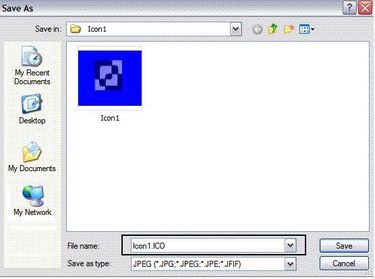
Type in the name of the file in the "File Name" drop-down list box. However, type ".ICO" at the end of the file name. Keep the "Save As Type" as JPEG. Click "Save." (NOTE: Do not be alarmed that you are first saving it as a JPEG type for now, because entering the ICO extension in the file name will activate the conversion.)
Step 4
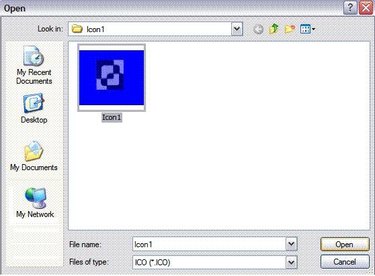
Choose "File" and "Open" from the toolbar menu. Select "ICO(*.ICO)" from the "Files As Type" drop-down list box.
Step 5
Click on the icon file and press "Open."
Video of the Day