How to Troubleshoot an Epson 825 With a MacBook
An Epson 825 is a popular ink jet printer model in Epson's Stylus Photo line. It is a color printer that contains two ink carts (one black, one CcMmY) and connects to a Mac via USB cable. Although it has proven to be one of Epson's more popular models, the Epson 825 has been discontinued, and it has been replaced with the Epson Artisan 50 Ink Jet Printer.
Instructions
-
-
1
Unplugged printers won't print. Check for any obvious issues. These include confirming the printer is powered on, that the USB cable is plugged in firmly at both ends (in the MacBook's USB and in the printer's USB port), and that the ink carts are properly seated. If it is a shared printer (connected to a computer that has its printer sharing enabled), make sure that the host computer is powered on, its hard drive isn't asleep and that it is visible on the network.
-
2
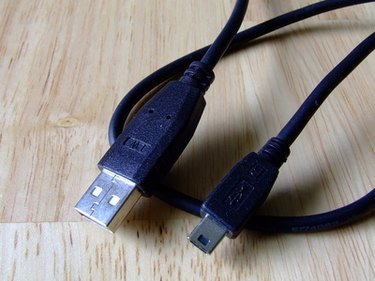
USB cable. Determine whether this issue is with the MacBook, the cable or the printer itself. Connect the Epson to a different computer and connect it with a different USB cable to pinpoint where the problem lies.
-
-
3
Check the print queue on the Mac. Open the print queue on the MacBook to see if there is a document gumming up the works. An incorrectly formatted print job (formatted for legal but attempting to print on letter) can definitely bring things to a screeching halt. If there are documents in the queue, delete them one at a time, starting with the one at the top of the list. Often, getting rid of the first one will allow the subsequent jobs to print. Try printing another document once the queue is clear to see if it goes through.
-
4
Cotton swabs can remove dried ink. Launch the "Epson Print Utility" (found in "Applications") to check the ink level, clear and align the print nozzles and look for any other problems that may be preventing you from printing. Check the ink carts; if there is any dried ink inside the compartment, use a cotton swab and alcohol to remove.
-
5
Check for foreign objects jamming the printer. Remove all media from the printer and check if there is anything that is physically preventing the paper from feeding. Paper jams, foreign objects and broken parts are what you're looking for. If there is a paper jam, attempt to clear it by grabbing the paper firmly and pulling it gently using a constant pressure. Attempt to clear it using the paper feed; don't try to pull it from the side or jerk it, as that will most likely cause it to tear and make the job even harder.
-
6
You can download the latest drivers. Open "System Preferences" from "Applications" and click on "Print & Fax." Highlight the printer in the list, click on the minus (-) icon at the bottom of the window to delete it. Then click on the plus (+) icon to add the printer. Although Apple routinely supplies print drivers for third-party printers, you may have to download the drivers from Epson's website (see Resources).
-
1
Tips & Warnings
Use only Epson-branded ink carts.
Don't attempt to remove a foreign object using a sharp metal object.
According to Epson, OS X does not support certain features.
References
Resources
- Photo Credit working late_1 image by think jesters from Fotolia.com no power left image by Olga Sapegina from Fotolia.com usb image by Andrea Riva from Fotolia.com Am Laptop image by Yvonne Bogdanski from Fotolia.com Cotton swab image by lefebvre_jonathan from Fotolia.com dun cat - printer image by Maria Brzostowska from Fotolia.com adress bar image by Wiktor Osiecki from Fotolia.com