"ANSWER THE PHOOONE," nags that needling, nasal voice — over and over — as your iPhone vibrates in your hand. It might not be the classiest ringtone, but it beats the mind-numbing uniformity of Apple's built-in sonic signals — indistinguishable from every other iPhone on the planet.
Even if you don't consider your tone a profound personal statement, you might still crave a sound that sets your phone apart from the crowd.
Video of the Day
Video of the Day
Replacing the iPhone's default ringtones and alert sounds is not terribly complex; you need only a few minutes with iTunes. It's equally easy to set up individual ringtones to identify the important people in your life.
Getting Started
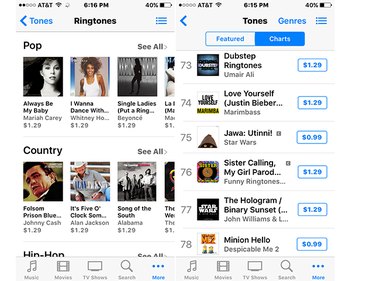
While Apple lets you purchase professionally produced musical ringtones and alerts in the iTunes Store, mostly for $1.29, you can create and install a tone from any song you own, completely free. A 30-second slice of music or voice memo from your iTunes collection, or an audio signal from an independent app, is all you need to create and assign original tones.
Before getting started, be aware of these details: If you use your own music, make sure you own it. DRM protected music will not work for ringtones. Also make sure your track is actually stored on your computer — not in the cloud. Ringtones begin life in AAC format, so if your music is encoded any other way, you'll have to convert it.
Roll Your Own Ringtone With iTunes
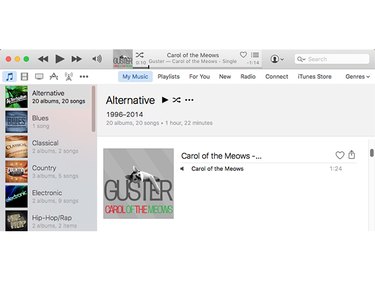
Launch iTunes and choose a song or voice memo you want to use from the My Music tab.
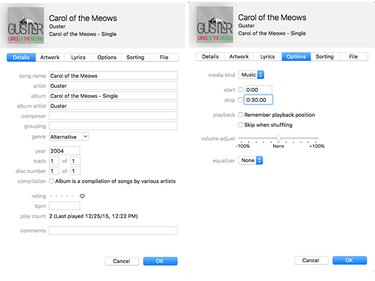
Right-click on the selection and choose Get Info to open the song's dialog box, and then click the Options tab. Fill in the Start and Stop checkboxes to define the times that you want the ringtone to begin and end. Do not exceed 30 seconds. Then click OK.
Go back to the iTunes menu and right-click the song again. This time, chose Create AAC Version. This gives you a copy of the song that you will use to create the ringtone. You can rename the new version if you want.
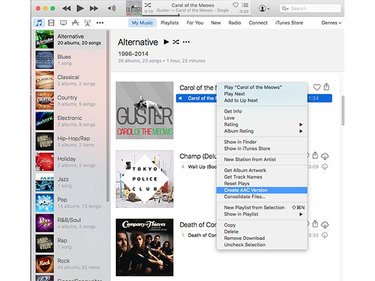
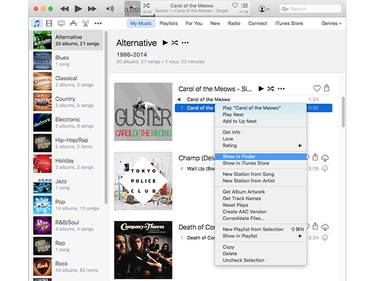
Go back to the Get Info > Options pane and uncheck the Start and Stop checkboxes so the original song will play in its entirety the next time you want to listen. Right-click on the new audio clip you created and choose Show in Finder (Mac) or Open in Windows Explorer (Windows).
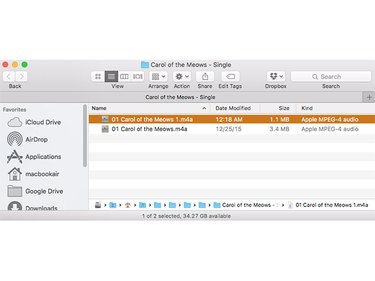
Right-click the file and select Get Info and change the file extension from .m4a to .m4r by clicking to highlight it. That new file format makes it compatible with the iPhone. Then, save the file and drag it to the desktop.
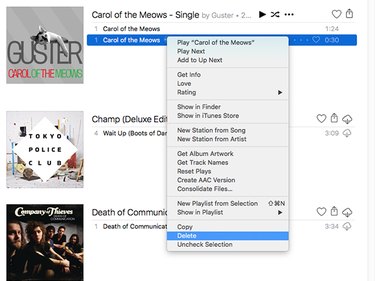
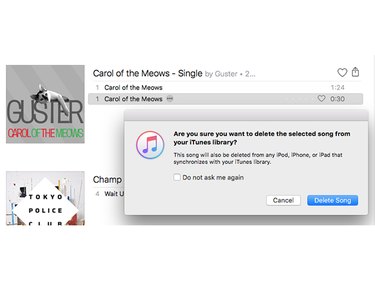
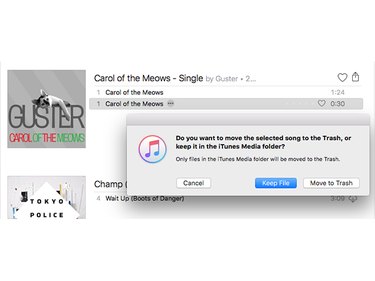
Return to iTunes and delete the short version of the track. When prompted, choose Keep File, to remove the track from the music library while keeping it in the hard drive.
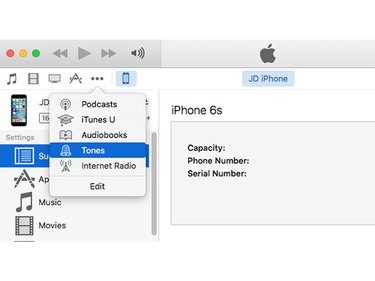
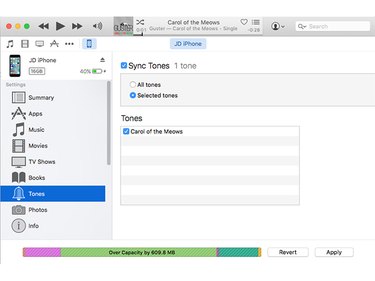
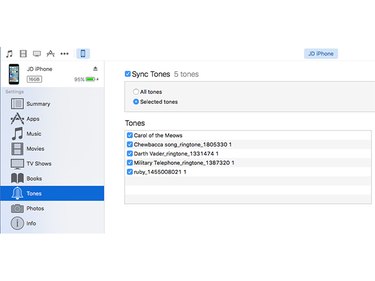
Connect your phone to your computer and launch iTunes, if it's not already open. Choose the three dots next to the phone icon and click Tones from the pull-down menu. Then, drag the new .m4r file from your desktop into the Tones window.
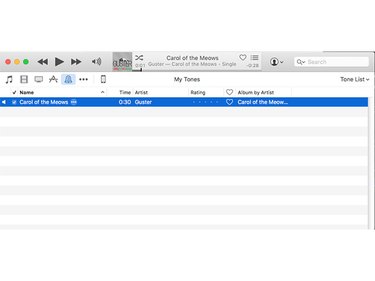
8. Click on the iPhone icon and choose Tones > Sync Tones > Selected Tones, select the tone, and click Apply. Wait for the process to finish.
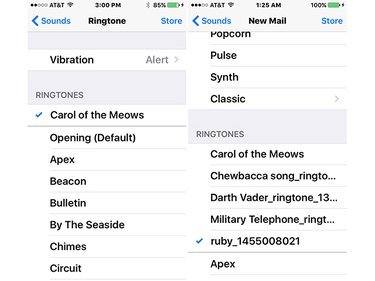
9. Now, switch to your phone. Choose Settings > Sounds > Ringtones and select the new ringtone. You can create as many ringtones as your storage will allow from iTunes or from specialty ringtone apps available in the App Store.
If you get an error message when trying to convert the original format, that means the song was purchased earlier than 2010 and is in Protected AAC format.
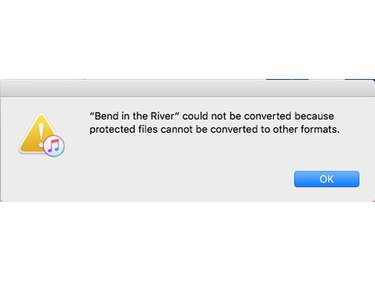
In that case, you'll have to download a DRM-free version of the song. Apple has posted instructions on how to do this. If that doesn't work or is too much hassle, just use a song you purchased within the last five years.
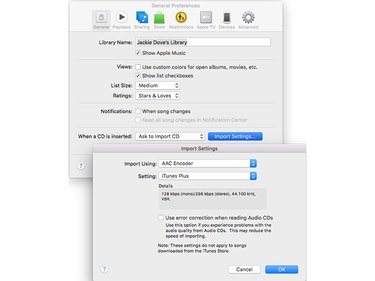
It also helps to set up iTunes preferences to always import your music in AAC format.
Ringtone Apps Offer Variety
But what if you don't want to go through all that just to create a new ringtone? An app is easier and faster, especially if you don't have a specific sound on your phone that you're dying to use. There are plenty of free ringtone apps in the iTunes store. To find them, just launch iTunes and search for "ringtones." Note that while many music conversion apps are free and can also include a selection of free ringtones, others are primarily converters with new tones available as in-app purchases.
Some free ringtone app interfaces can be a bit loud and flashy. They may be ad-supported or try to immediately sell you an upgrade to a "pro" version or hawk other in-app purchases or related apps. Be prepared to have to slog through the distracting hype to get to the real functionality.
Double check that the app you choose has been updated within the last year so it's completely compatible with your current operating system: There are a number of apps in the store that date back to 2012. Also, make sure you have the latest version of iTunes installed on your Mac or PC.
Note that no ringtone option will be completely iTunes free — that's because the apps do not have access to the iPhone's internal folder structure, so you will always need to sync new ringtones via iTunes regardless of what method you use. Each app has instructions on how to best transfer its tones to iTunes.
Here are a few apps that did a good job of creating free ringtones and alerts when we investigated the options:
Ringtones for iPhone
Ringtones for iPhone is an all-in-one app that lets you design both ringtones and notification alert sounds from a large library of built-in music and sound effects, while its tune creator lets you record or mix an original tune from your own library. The app converts iTunes music (both MP3 and AAC formats) as well as original voice recordings to ringtones. You can assign tone notifications to text alerts, SMS, or iMessages and even share them over Facebook and Twitter.
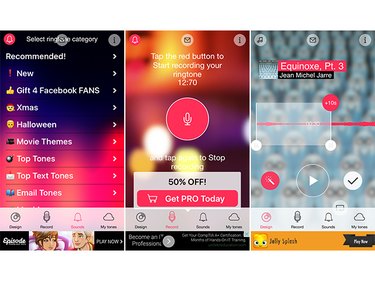
Ringtone for iPhone
With Ringtone for iPhone, you can create an unlimited number of tones and download many others for free from 27 categories, such as Sound Effects, Holiday, Children, Pets & Animal, and more. Delve into your own sound library and create original tones with music, voice morphing effects, or from original sound recordings.
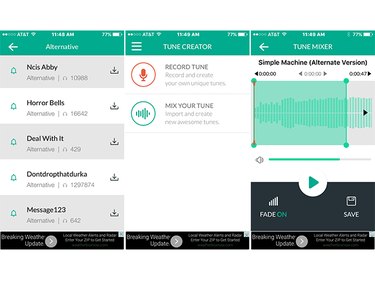
Free Ringtone Downloader
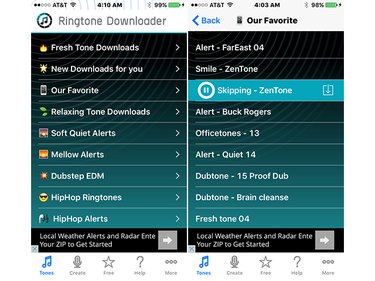
Free Ringtone Downloader is an easy-to-use ringtone downloader app that gives you alert tones for new text messages, new email, wakeup alerts, and calendar alerts. You can also create ringtones from your favorite songs.
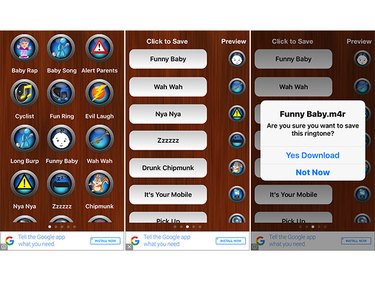
Top Funny Ringtones
Yup, you're a prank artist and the funny tracks on Top Funny Ringtones will have you giggling. Just stay cool and all will be well, as you choose from the obnoxious "pick up the phone" recordings, broken glass, donkey noises, spouse and parent warnings, and so forth. Someone had to do it.
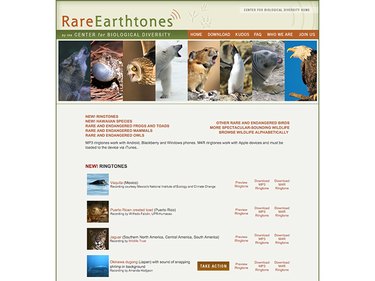
The Center for Biological Diversity offers a lovely selection of nature ringtones for free.
Different Tones for Different Folks
Why stop at just one ringtone? You can customize several new ringtones to assign to friends, family, and colleagues. Launch the Contacts app on your iPhone, select a person, then tap the Edit option at the upper right corner.
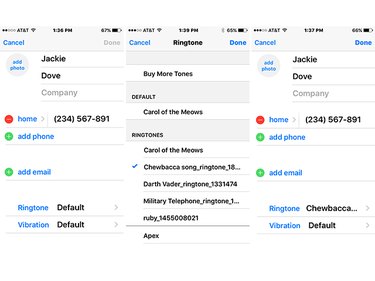
Scroll down to find the Ringtone section, which will already have the default tone. Tap for the full menu, which allows you to choose a different ringtone and pick the one you want. Thereafter, your contact's calling ring will alert you immediately to who's on the line.
You can also use your new ringtones to signal tweets, Facebook posts, calendar alerts, sending and receiving mail, and a host of other functions.
Every iPhone user has an unlimited opportunity to customize their handset with any combination of sounds, completely free of charge. Have fun and go crazy!