Keeping your address book up to date helps to ensure you always have access to important contact information when you need it. If you're moving to a new computer, you need not leave your Thunderbird contacts behind. But Thunderbird has a dedicated import and export tool that enables you to transfer address book contacts from one computer to another easily.
Step 1
Click the account containing the address book you want to transfer to a new computer. If you have multiple accounts set up for use, they will be listed on the left side of the main Thunderbird window. If you only have one account, you can skip this step because it is selected automatically.
Video of the Day
Step 2
Click the "Address Book" button to open the address book for the selected account. The Address Book button is located on the horizontal menu near the top of Thunderbird.
Step 3
Select the address book you want to export in the left-hand column, click "Tools" on the main menu and select "Export" to load the Export Address Book dialogue box.
Step 4
Enter an identifying name for the exported address book in the Save As field, verify that "LDIF" is selected on the Format drop-down menu and then click "Save" to export the address book.
Step 5
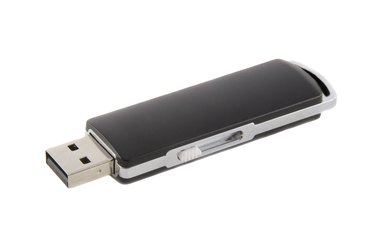
Copy the exported file onto your new computer using a USB key, external hard drive or other portable media device. You can also email the file to your new computer as an attachment.
Step 6
Open Thunderbird on your new computer, click "Address Book," select "Tools" and then choose "Import" to open the import wizard.
Step 7
Click "Address Books | Next | Text file (LDIF, .tab, .csv, .txt) | Next" and then double-click the address book file you copied from your old computer. Click "Finish" to finish transferring your address book to your new computer.
Video of the Day