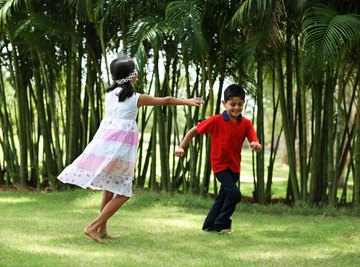

The animal kingdom is full of fascinating examples of predator and prey animal combinations. To make this concept come alive for your youngsters, play predator vs. prey games, focusing on scenarios such as food webs and animal classifications. Some games are ideal for inside or outside play and you can modify them for any age group.
Prey Scavenger Hunt
Provide each student with a card that shows the picture and name of a predator. The predators should vary, such as owls, jaguars, sharks and alligators. Hide prey items around the room that the predators might eat. Discuss with students what animals their predator may eat. Students can list those animals on the card or a separate sheet of paper.
Place the predators in groups such as birds of prey, jungle predators and water predators. Have the students search out different prey items. Each predator must find at least three prey items in three minutes to stay alive. Hide new prey cards for the next group of predators and repeat.
Predator and Prey Outdoor Game
Place hula hoops around a large area. These are "safe" places for prey animals to hide. Place "food" items around the area for the prey animals to eat. Assign certain students to be prey animals. The goal of the prey animals is to not get eaten and gather at least three food items.
Predators will roam the area searching for prey. If the prey animal is tagged the predator has killed and eaten the prey. Predators need to tag at least two prey animals. Prey animals may go into the hula hoops to avoid the predators and communicate with other animals by making noise. Each game should last no more than a few minutes.
Survival of the Hardest to Find
The survival of the many species relies on being well camouflaged. In a large area, hide different colored "snakes" using ribbons of different colors. The ribbons should either blend in very well with the environment or stick out brightly. Tell students they are birds of prey looking for a snake dinner.
Have the students search out the predefined area to look for snakes. After a few minutes, bring the class back together. Discuss which snakes were the easiest to find and which were the hardest. The snakes that were the hardest to find have the best chance to produce offspring.
Blind Mice and Owls
Create a large circle with no obstacles for students to trip over. Assign a few students to be mice and one student to be an owl. Blindfold each student and discuss that owls have great sense of hearing which helps them locate their prey. Provide the mice a noisemaker such as crinkled up paper.
The mice are to roam around the circle making noise. The owl is to find the prey following the noise. Make it more difficult for the owl by adding other sounds such as letting the other students in the circle make wind and creaking noises that may be in a forest.
The Nose Knows
Many creatures rely primarily upon their sense of smell while searching for food, such as opossums or skunks. Clear the room so that the students will not bump into any obstacles. Microwave several individual-sized bags of buttered popcorn.
Have the students momentarily leave the room, and hide the bags of popcorn in different areas of the room. Alternately, you can have a student hide the popcorn bags from the rest of the class. Turning off the lights or using blindfolds, have the students re-enter the room using only their sense of smell to find the popcorn bags.
References
About the Author
Michael Carpenter has been writing blogs since 2007. He is a mortgage specialist with over 12 years of experience as well as an expert in financing, credit, budgeting and real estate. Michael holds licenses in both real estate and life and health insurance.
Photo Credits
Visage/Stockbyte/Getty Images