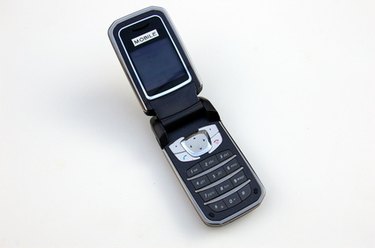
Thanks to modern technology, you can send any files, such as videos and pictures, from your desktop computer or laptop to your cell phone. You can send files to your cell phone in several ways, such as through email, a Bluetooth connection or a USB data cable. The best way to send video files depends on the type of cell phone and the provider.
Step 1
Make sure that your AT&T cell phone has WAP or GPRS so you can receive emails; this information should be in the owner's manual. Log on to your email and send the video file to your cell phone. The drawback is that you have to pay for the time you are logged in to view the video you download.
Video of the Day
Step 2
Transfer video files from your computer to your cell phone with a USB data cable if you have a cell phone provider other than AT&T. You'll need to purchase a USB data cable, as this does not come free with your cell phone unit. You also need a copy of DataPilot to transfer video files or any other files to and from your cell phone.
Step 3
Send video files through a Bluetooth connection. If your computer does not have built-in Bluetooth capabilities, get a Bluetooth adapter. Configure your computer with your cell phone, then send video files from your computer to your cell phone.
Step 4
Send videos to your cell phone without buying or paying for anything through Beam It Up Scotty. Follow the steps on the website to send any files, such as pictures and music, to any phone that has a 3GP format. Sending files is free, but the service is limited to 10 text messages per user per day. The limit of the file size is 100 MB.
Step 5
Send videos from your computer to your cell phone using MobFile.com. Follow the steps on the website.
Video of the Day