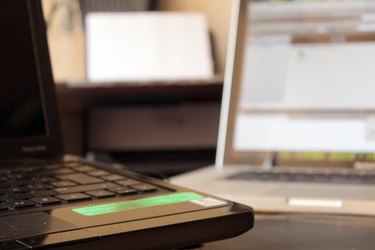
If you have two computers and only one printer with a USB port, you can share the printer between the computers with a fast connection. No software or special modifications are required, although both computers will need to be loaded with the drivers for operating your particular printer. The drivers can be found on the software discs that came with the printer. To make the connections, you just need to get a USB hub available at computer stores and electronics shops, then follow some steps.
Step 1

Shut down both computers and the printer.
Video of the Day
Step 2
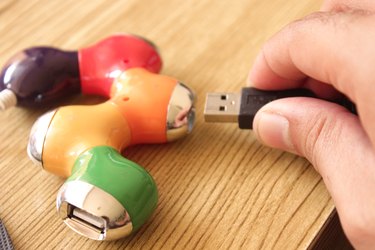
Plug 2 USB cables into the input jacks on the back of the USB hub.
Step 3
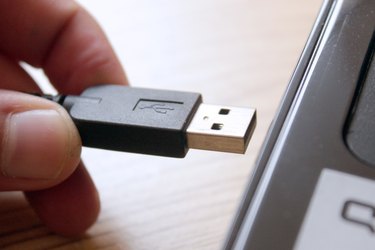
Plug the opposite ends of the USB cables into a free USB port on each computer.
Step 4
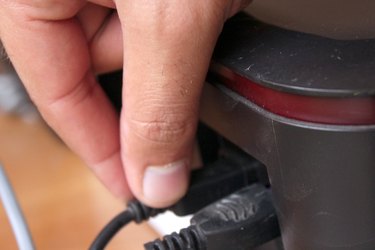
Plug the out jack from the USB hub into the USB port on the back of your printer.
Step 5
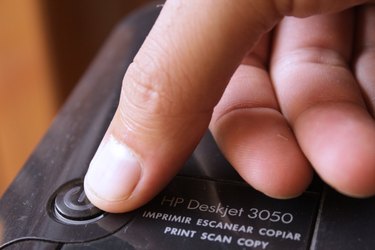
Turn on the printer.
Step 6
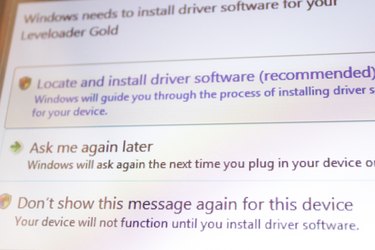
Log in to your computers and wait for each to recognize the printer and display the message New Hardware Detected.
Step 7
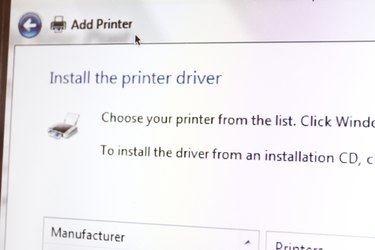
Load the printer drivers on the computers, if necessary, using the software on CD that came with the printer.
Video of the Day