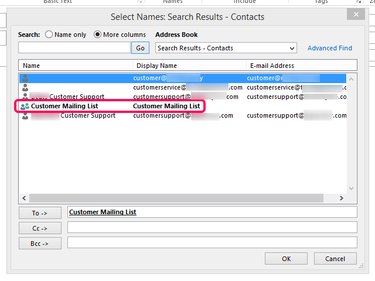
Microsoft Outlook lets you send emails to more than one recipient at once by selecting multiple addresses from your contact book. If you plan on frequently sending emails to the same mailing list, consider adding those contacts to a contact group to save time.
Send an Email to Multiple Recipients
Step 1
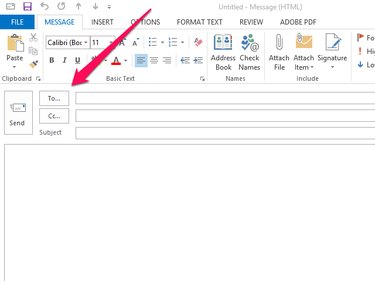
Click the New Email button and select To to open the Select Names window.
Video of the Day
Step 2
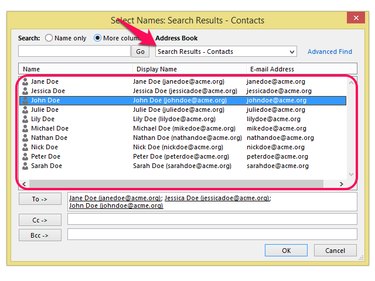
Select the address book containing the intended recipients from the Address Book drop-down menu. Double-click each of the contacts you want to send your mailing to and select OK to close the window.
Step 3
Compose your email and click the Send button to send it to the selected contacts.
Use a Contact Group
Using Outlook's contact group feature lets you save time by adding a list of recipients to an email with a single click.
Video of the Day
Create a Contact Group
Step 1
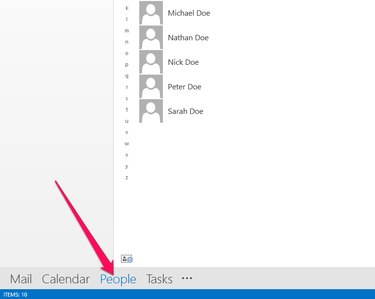
Select People from Outlook's Navigation bar.
Step 2
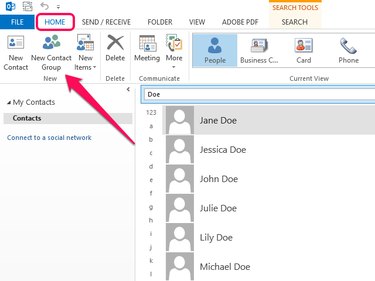
Open the Home tab and click the New Contact Group button.
Step 3
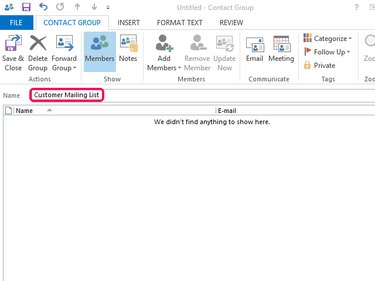
Enter a name for your new group in the Name field.
Step 4
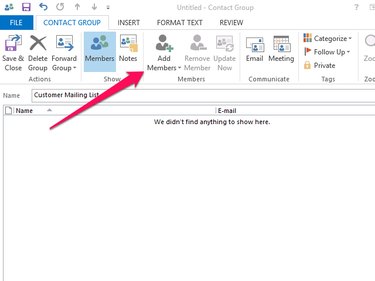
Click the Add Members button.
Step 5
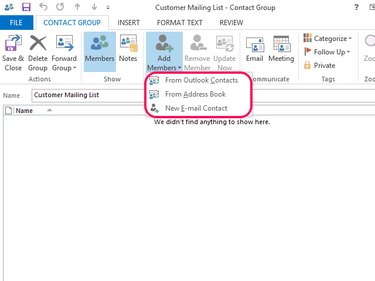
Select From Outlook Contacts or From Address Book to add, respectively, contacts from your default Outlook contacts list or from a secondary address book. Alternatively, add new contacts to the group by clicking New E-mail Contact.
Step 6
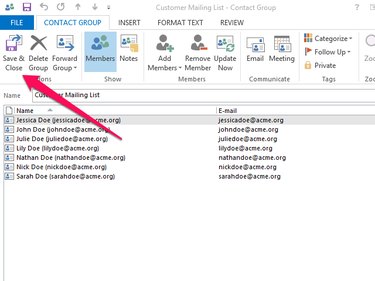
Click Save & Close when you have finished adding contacts.
Send an Email to a Contact Group
Send an email to a contact group by creating a new message, clicking To and selecting the contact group from the Select Names window.