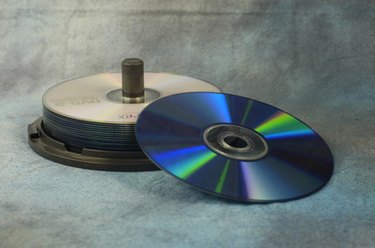
If you have several videos recorded on you Dish Network satellite TV's digital video recorder, the DVR will run out of space eventually. One option is to copy them onto recordable DVDs. With a DVD recorder, you can transfer any videos from the DVR onto DVDs, allowing you to keep all your old recorded videos while freeing up DVR space for new ones.
Step 1
Purchase a DVD recorder. Check the type of recordable DVDs it uses (DVD-, DVD+, etc.) and get those type of discs also. A tunerless DVD recorder may work best, as you won't have to worry about setting a channel.
Video of the Day
Step 2
Disconnect the cable link between the DVR and the TV set. If they are connected by an RF coaxial cable, you may have to disconnect it at both ends. The DVD recorder might not have a coaxial port. Leave alone the connection between the DVR and your Dish Network receiver box.
Step 3
Connect an output port on the DVR to an input port on the DVD recorder. There may be a number of options you will have with this connection. An RCA cable (with the yellow, white and red plugs) or a composite video cable (with green, rad and blue plugs) may be your best choices.
Step 4
Link the DVD recorder to the TV set, making sure the cable is connected to an output port on the recorder. All the ports on the TV should be input. An HD or LCD TV may have composite video ports for you to make that type of connection. Otherwise, an RCA cable is the most likely choice.
Step 5
Turn on the TV, Dish Network box, DVR and DVD recorder once everything is plugged in. Make sure your cable/satellite TV still plays on the screen. Then play a video on the DVR to make sure it comes on.
Step 6
Insert a recordable DVD into the recorder. Read over the specific instructions to follow the exact recording procedure for your particular recorder. Play the video you wish to record from the DVR and use the DVD record button to begin recording.
Step 7
Play back the recorded DVD after recording is complete to ensure the video was properly copied.
Video of the Day