Setting AT&T's website as your browser's home page can help you keep up-to-date with the company's latest news and promotions. All three major browsers under either Windows 8.1 or 7 -- Google Chrome, Mozilla Firefox and Microsoft Internet Explorer -- let you customize your home page by editing the browser's settings.
Google Chrome 41
Video of the Day
Step 1
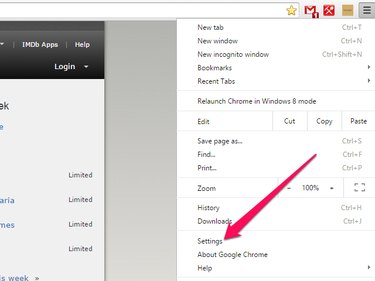
Launch Google Chrome and click the Menu icon to open the Customize and Control Google Chrome menu. Select Settings.
Video of the Day
Step 2
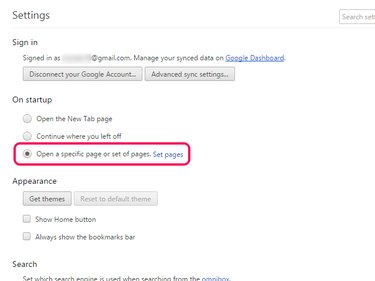
Select Open a specific page or set of pages and click Set pages.
Step 3
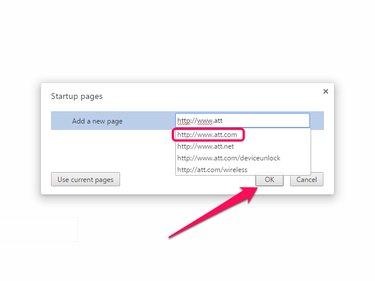
Enter http://www.att.com in the Add a new page field and click OK to finish editing your settings.
Mozilla Firefox 37
Step 1
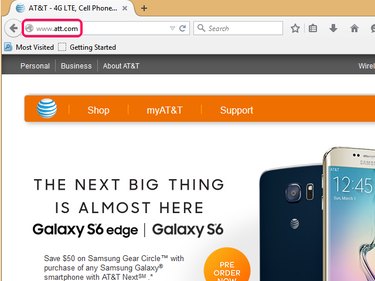
Visit AT&T's website in Firefox by entering http://www.att.com in the address bar.
Step 2
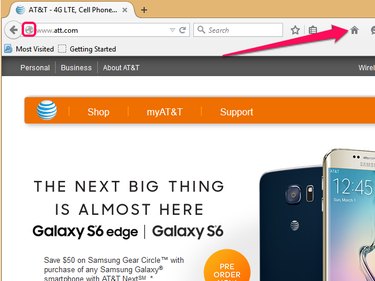
Click on the Globe icon next to the website's address and drag it to the Home icon in the browser's toolbar.
Step 3
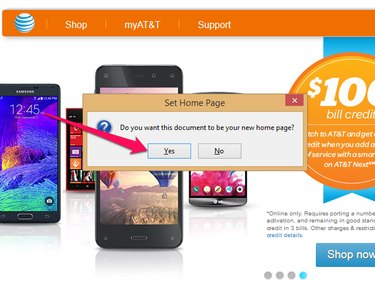
Select Yes to make AT&T's website your new Firefox home page.
Internet Explorer 11
Step 1
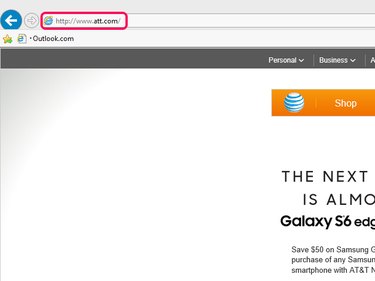
Launch Internet Explorer and enter http://www.att.com in the browser's address bar.
Step 2
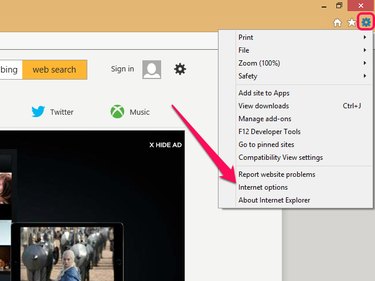
Open the Cog menu and select Internet options.
Step 3
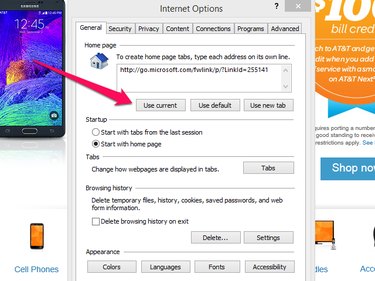
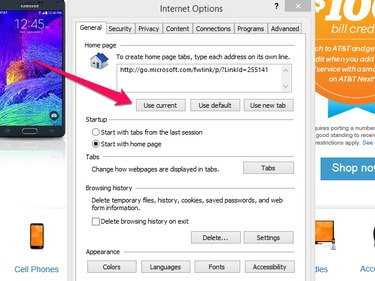
Select Use current to set your default home page to AT&T's home page.
Step 4
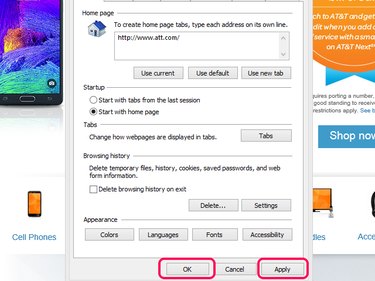
Confirm your new home page settings by clicking on Apply and selecting OK.