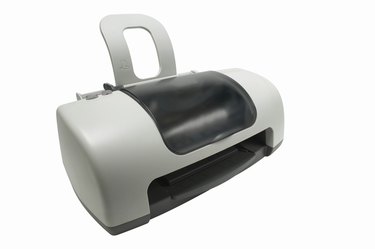
The last thing you want to see when you are trying to print a document in a hurry is a low-ink warning. These messages can be annoying, and in most Cannon printers, they start popping up when only 70 percent of the ink has been used. Although the notifications can be closed after each occurrence, if you want to get rid of them completely, you'll need to perform an ink cartridge reset.
Step 1
Go to the Control Panel and highlight "Printers." Then right-click the icon and select "Properties." A new window will pop up.
Video of the Day
Step 2
Highlight your Canon printer and then click the "OK" button to edit the properties. Then click on the "Maintenance" tab.
Step 3
Find the "Low Ink Warning" option and uncheck the box next to the option. Then press the "OK" button and exit the utility.
Video of the Day