PowerPoint allows you to add decorative text over pictures using WordArt, or normal text using text boxes. After adding text over a picture, you must group both items so that the text remains in place even when moving the picture.
WordArt
Step 1
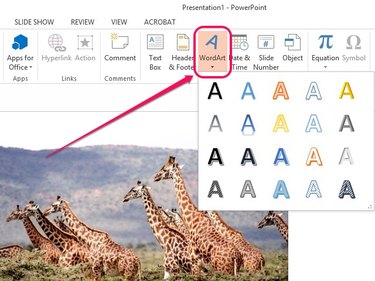
Open the Insert tab, select WordArt in the Text group, and then select your preferred WordArt style.
Video of the Day
Step 2
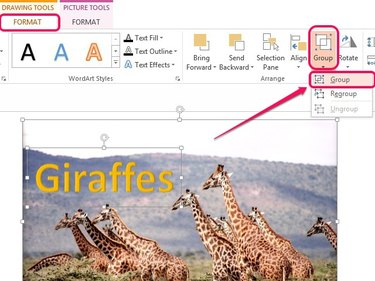
Insert your text, and then move the WordArt box over the picture using the cross-shaped icon that appears when you hover your cursor over the edges of the box.
Hold down the Ctrl key, and then click on the both the picture and the WordArt box. Open the Format tab under Drawing Tools, and then click Group in the Arrange group. In the pull-down menu that appears, select Group.
Text Box
Step 1
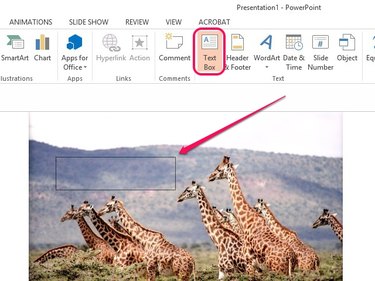
Open the Insert tab, and then click Text Box in the Text group. Place the cursor over the picture where you want the text to appear, and then click and drag to create a text box. Insert the text into the text box.
Step 2
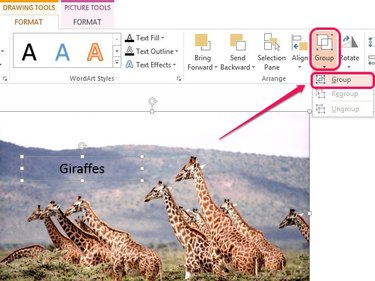
Press Ctrl, and then select both the picture and the text box. Click Format under Drawing Tools, click Group in the Arrange group, and then select Group.
Video of the Day