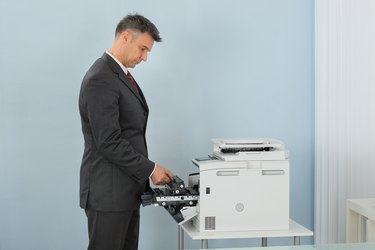
Many times, when an HP printer has an error, the cause is clearly shown on the monitor. However, in other cases, the cause of the HP printer error may be a complete mystery. Instead of going on a wild-goose chase to find the exact solution for the printer error, it's better to try a series of routine troubleshooting steps first. If these steps fail to fix the printer error, you may find the solution on the HP website.
Step 1
Ensure that the HP printer cables are properly connected. If in doubt, turn off the printer, unplug it and disconnect all of the printer cables. Plug it back in and reconnect the cables. Turn the printer back on again to see if the error has cleared.
Video of the Day
Step 2
Check the HP printer cartridges and print heads to ensure that they're installed properly. Also see if the printer cartridges are empty. If the ink cartridges have sufficient ink, reinstall the cartridges and the print heads. If an ink cartridges is empty, replace it with a new one.
Step 3
Make sure that the HP printer's software is properly installed. If the device does not respond when you try to print or the printer software won't initialize, uninstall and reinstall the HP printer software.
Step 4
See if your computer's firewall is preventing the HP printer from functioning properly. Open your firewall preferences and add the printer software executable file (*.exe) as an exception or disable the firewall temporarily to see if this fixes the error.
Step 5
Check the print settings in the HP printer software if the pages don't print properly. Make sure that the margins are set to at least the minimum margins that your HP printer supports. Also ensure that you've selected the correct printer settings for the paper size and type of document you're trying to print. To access these printer settings more easily, open the HP Solution Center.
Step 6
Clean and align the printer cartridges. Open the software for your HP printer or the HP Solution Center to access these maintenance features.
Step 7
Double-click on the HP printer icon in the system tray on the bottom right of the screen, if it appears. Look under "Status" in the printing queue to read the error messages. Right-click on the entries and select "Cancel," if necessary.
Step 8
Navigate to the HP website to search on your specific printer model if these steps fail to fix the printer error. Click on "Support and Troubleshooting." Click "Solve a Problem" to find solutions for the HP printer's specific error. Also check the "Software and Downloads" area for software and driver updates.
Video of the Day