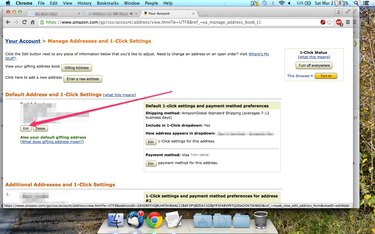
Edit your default address using the Manage Address Book feature.
Image Credit:
Image
The first time you purchase an item on Amazon, the website prompts you to enter a delivery address. This address then becomes the default shipping destination for items purchased through your account. Use the Manage Address Book section of the Your Account page to change your delivery address.
Step 1
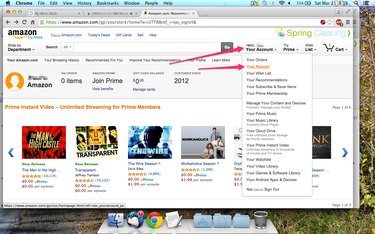
Open the Your Account page.
Image Credit:
Image courtesy of Amazon
Sign in to Amazon and then hover your mouse over the Your Account button on the main menu and select Your Account.
Video of the Day
Step 2
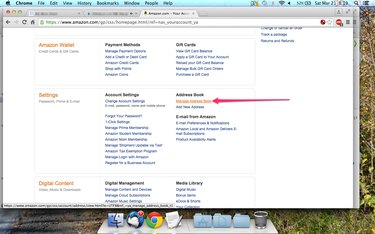
Open the Manage Address Book page.
Image Credit:
Image courtesy of Amazon
Scroll down and click the Manage Address Book link in the Settings section.
Step 3
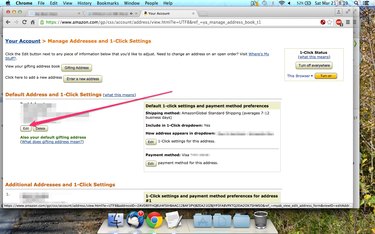
Click the Edit button.
Image Credit:
Image courtesy of Amazon
Click the Edit button located beneath your default delivery address.
Step 4
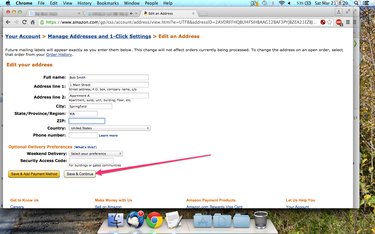
Enter the new delivery address.
Image Credit:
Image courtesy of Amazon
Change the address information in the provided fields and then click the Save & Continue button.
Video of the Day