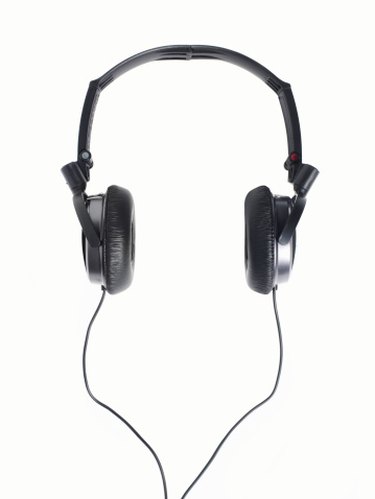
Computer audio centers on two types of connections: input and output. PC users plug microphones into input jacks and speakers or headphones into output jacks. Windows comes with a free utility called Sound Recorder that allows you to create audio recordings. This comes in handy when you need to record a quick voice memo or send someone an audio email attachment. If you don't have a microphone to plug into your computer's input jack, you can use headphones to record your voice.
Configure Headphones
Video of the Day
Step 1
Find a pair of computer headphones. If you have several to choose from, pick the pair that has the least amount of padding around the earpieces.
Video of the Day
Step 2
Plug the headphones into your computer's "Mic in" jack. You will find the jack on the back of your computer where the sound card is. If your sound card does not have a "Mic in" jack, plug the headphones into the "Line in" jack instead. If you need assistance finding these jacks, consult your computer users manual or Internet support site.
Step 3
Right-click the microphone icon in your system tray near your system clock. A drop-down menu will open. Click "Recording Devices" to open the Windows "Sound" window.
Step 4
Click the "Microphone" icon to select it, and then click "Properties" to display the "Microphone Properties" window.
Step 5
Click the "Levels" tab to display a volume slider. The slider controls the microphone's volume level.
Step 6
Click the slider and slide it all the way to the right to maximize the volume. Click "OK."
Record Your Voice
Step 1
Click the Start button to open the Start menu.
Step 2
Type "Sound Recorder" (without the parentheses) to launch the Windows Sound Recorder.
Step 3
Hold one of the earpieces of the headphones close to your mouth, and click Sound Recorder's "Start Recording" button. The program will begin recording.
Step 4
Speak loudly but clearly into the earpiece. When you are finished, click "Stop Recording." Windows will open a "Save As" window. Type a name for the recording in the "File Name" text box and click "Save." Sound Recorder saves your recording as a Windows Media Audio (.wma) file.