HTML5 allows you to force the visitor's Web browser to download files, such as PDFs, instead of opening them in the browser. Alternatively, you can embed and display your PDF files inside the page, or let the Web browser display them instead of opening an external PDF viewer.
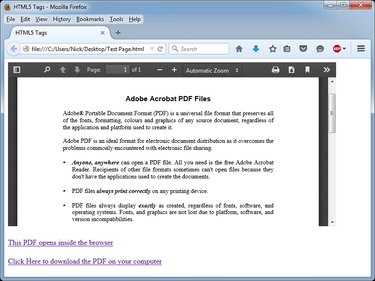
Forcing the Browser to Download the PDF File
Step 1
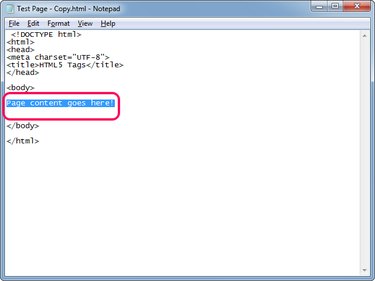
Open the HTML file in the HTML editor of your choice. If you don't have an editor, you can use Windows Notepad text editor to edit your Web pages.
Video of the Day
Locate the place where you want to display the hyperlink in the document. The content of the Web page can be found between the and tags.
Step 2
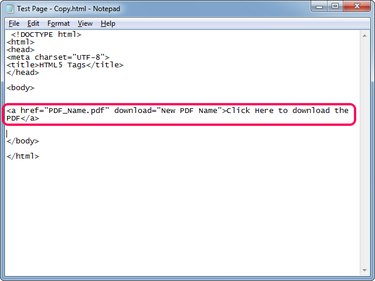
Type Click Here to download the PDF to create a new hyperlink that downloads the PDF instead of opening it in the Web browser.
Replace "PDF_Name.pdf" with the name of the PDF if the file is in the same folder as the HTML file. If the PDF is in a different folder, use the full path to the file -- C:\Downloads\Sample.pdf, for example.
The download parameter forces the Web browser to download the file instead of opening it using the browser's integrated PDF viewer. You can type a meaningful name for the PDF, replacing "New PDF Name" -- the browser uses this name when it saves the file. Renaming is useful when your PDFs are generated automatically on the server and contain long, meaningless names.
Replace "Click Here to download the PDF" with your own anchor text, which is the visible, clickable part of the link.
Step 3
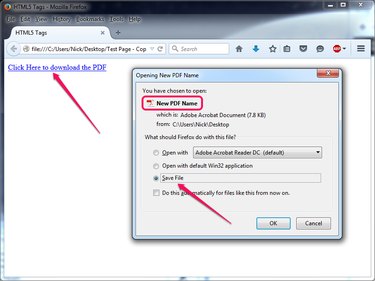
Press Ctrl-S to save the changes to the Web page and then test the new hyperlink by opening the page in a Web browser. Click the new link and the browser prompts you to save the file.
Embedding or Opening the PDF Inside the Browser
Embedding PDFs
By embedding the PDF file into the Web page, you display the contents of the file inside a container.
Video of the Day
Step 1
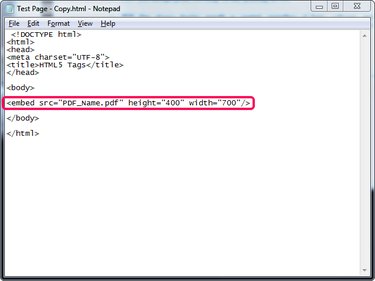
Open the Web page in Notepad or an HTML editor and type anywhere between the and tags to embed the PDF file.
Replace "PDF_Name.pdf" with the name of your file or with the full path to the file if the PDF is located in a different folder than the HTML file.
Replace "height_in_pixels" and "width_in_pixels" with the height and width you want the container to have.
Step 2
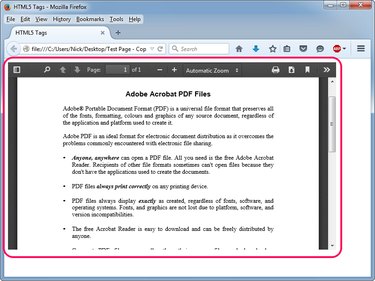
Press Ctrl-S to save the changes to the Web page and then test the embedded PDF by opening the page in a Web browser.
Opening PDFs Inside the Browser
Open the PDF inside the Web browser by creating a hyperlink without the download parameter: Click Here. The Web browser opens the file using its built-in PDF viewer; it only prompts the visitor to download the file if the viewer is disabled or malfunctions.