How to Create a Link to Send Photos

Creating a link to send photos is a popular Internet task among many computer users. It's fun, easy and free to share your photos with family, friends and the world. Many online tools are available and all you need is a computer and Internet connection. For those who are really creative, post your own blog or website to share your photos. Those who like to keep it simple can just attach, send and share your photos using your email account.

Things You'll Need

  • Digital Photos
Show More

Instructions

    • 1

      Choose an online photo sharing site. Popular websites include Flickr, Google Picasa, Photobucket, and, for professional photographers, Smugmug.

    • 2

      Create an account with an online photo sharing website. Online photo sharing websites have limited storage for free accounts (for Flickr 100 mb and Google Picasa 1 gb). You may increase storage capacity, however, a monthly fee will be charged. Check the website's help and FAQ sections for details.

    • 3

      Insert the photo storage device (flash drive, CD or digital camera memory card) into the computer. An icon will appear on your computer desktop or in the start button My Computer system folder.

    • 4

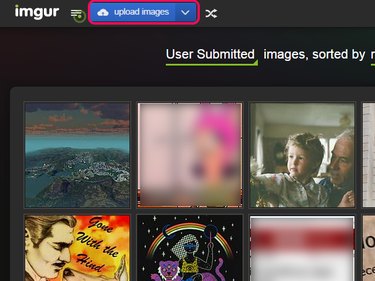
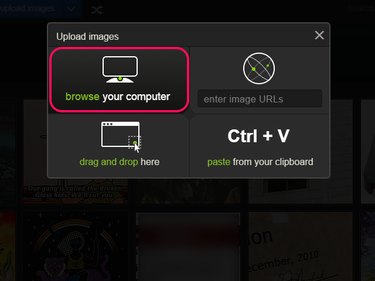
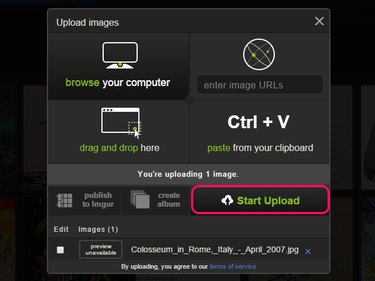
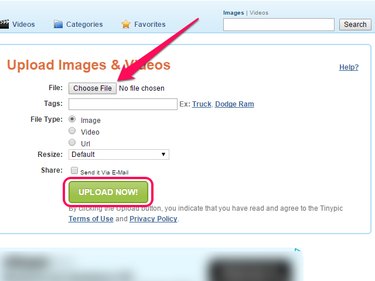
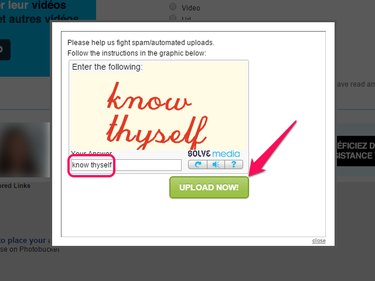
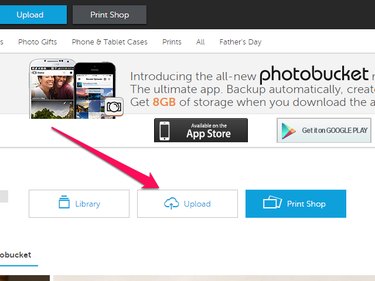
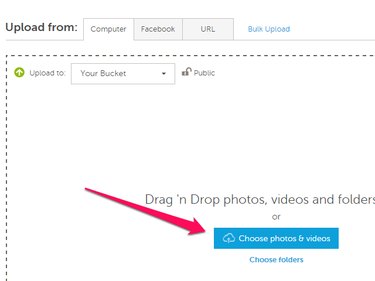
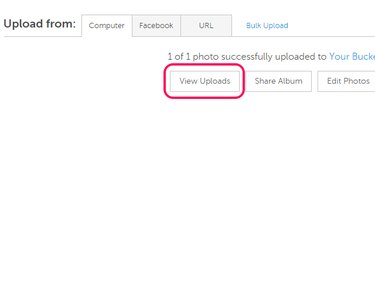
      Import or upload the photos to your online photo sharing account. On your photo sharing account, depending on the photo sharing website chosen, an upload, share or similar text link is part of your account's homepage. Click on the upload or share text link. Follow the prompts used by the online photo sharing website to post your photos.

    • 5

      Link, send and share photos. A web link includes the http:// found in a browser's address bar. For example, Flickr's web link to the home page is http://www.flickr.com/. Users can cut and paste a web link to send photos for others to view. Online sharing sites allow users to import contacts from their email accounts. Once imported, users can send photos to contacts. Each contact is given a level such as family, friend or contact, or a created group (i.e. vendor).

    • 6

      Apply viewing restrictions. Online photo websites offer users' different options on how their work is shared. Options include public, private or group. The public option shares photos with everyone; private shares photos with only the people given user permission; and group(s) are names categorized by the user to share certain photos with select individuals.

Tips & Warnings

  • Edit your photos using an online photo sharing website. If emailing, photo editing requires a separate software program. Free photo editing software include Paint.net, Gimp and Photoscape. Online sharing sites are adding a new feature for video sharing.

  • Although email is a quick way to send photos, there are some drawbacks. Sending a batch of attached photos, due to file size, cannot be done with most email accounts. The maximum file size, depending on the email service, is between 10 to 20 mb. Read article, "Share your digital photos instantly," at Microsoft.com. Another drawback is the necessity for separate software to edit your photos.

Related Searches:

References

Comments

You May Also Like

Related Ads

Featured