eHow launches Android app: Get the best of eHow on the go.

How To

How to Enter Bios on Most Computers

Member
By chezfat
User-Submitted Article
(0 Ratings)

Modern computing occasionally requires the savvy user to enter bios or CMOS mode to perform typical troubleshooting functions or system tweaks. For the user who is not a computer systems professional or for those who have never had to do so, entering bios may seem easier said than done. The task however is far easier than you may think. This guide will give you step by step instructions on how to enter bios on most computers.

Difficulty: Easy
Instructions
  1. Step 1

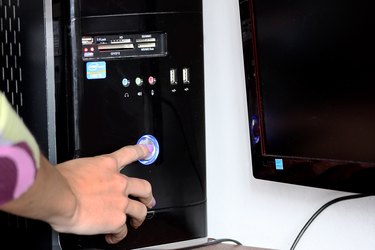
    Shut down your computer or laptop. The bios screens can only be accessed before the system boots up.

  2. Step 2

    After letting your computer sit in the off position for a few seconds turn your computer back on. Make sure to be ready to press the the bios entry buttons before your operating system begins to load.

  3. Step 3

    Many computers will display a short message at boot up showing how you enter bios mode. If you see the advice line follow it's commands and you should be in bios mode. If you do not see an instruction line try pressing the most typical entry key for most systems, the Delete button. If this button does not enter into bios mode then try the other common entry point buttons: F1, F2, F3, F5, F10, Escape, or Insert.

  4. Step 4

    If you do not successfully enter bios mode before your operating system begins to load then you will have to repeat steps 1-3 again pressing the other common bios entry keys that you didn't get to try on first attempt.

  5. Step 5

    Repeat the processes of steps 1-4 until all typical entry keys have been attempted. If none of the aforementioned keys enter bios mode you will have to consult the manufacturer of your hardware or the manual that came with your computer.

Post a Comment

Post a Comment
  • Have you done this? Click here to let us know.
I Did This

Related Ads

Computers
Alexia Petrakos,

Meet Alexia Petrakos eHow's Computers Expert.

Get Free Computers Newsletters

Copyright © 1999-2009 eHow, Inc. Use of this web site constitutes acceptance of the eHow Terms of Use and Privacy Policy.   en-US Portions of this page are modifications based on work created and shared by Google and used according to terms described in the Creative Commons 3.0 Attribution License.

eHow Computers
eHow_eHow Technology and Electronics