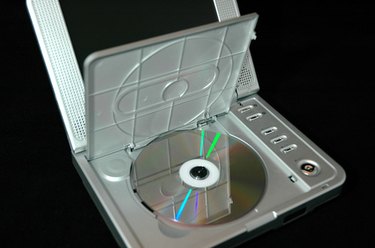
DVD players operate under what are referred to as "region codes." Regions codes keep the the unit from locking out DVD discs from region code areas that are not recognized by the player, such as foreign countries. Nine region codes were in operation as of June 2010. Several simple steps can turn your Sylvania DVD player into a region-free model.
Step 1
Find your Sylvania DVD player model number, which should be located by the player's outputs or on the bottom of the player. You can check the original DVD player box as well for this number.
Video of the Day
Step 2
Open you Internet browser and go onto VideoHelp.com. This web page contains codes that alter DVD players into region-free settings.
Step 3
Input your Sylvania DVD player model number into the VideoHelp.com search engine.
Step 4
Turn on the Sylvania DVD player and open the DVD disc tray. Allow the tray to remain open, as region-free DVD codes require the DVD unit's tray to remain open while the region code is activated.
Step 5
Enter the Sylvania region-free code provided by the website by using the DVD player controller. Program the Sylvania DVD player to region code "0" or "All." Your Sylvania DVD player is now region free.
Video of the Day