eHow launches Android app: Get the best of eHow on the go.

How To

How to Set Up a Belkin N F5D8236-4 Wireless Router

Contributor
By Daniel Barrows
eHow Contributing Writer
(0 Ratings)

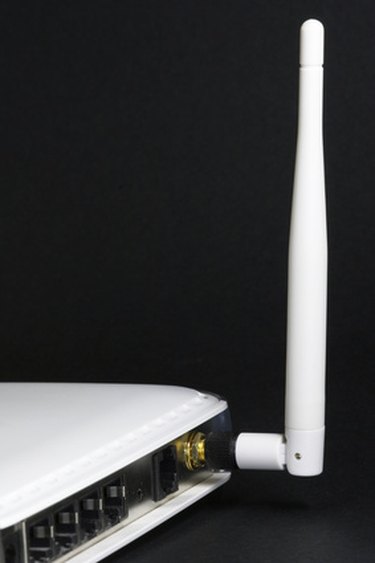
The Belkin N F5D8236-4 wireless router is designed for use in a home-office or small-business environment; once installed, the router will facilitate networking with 802.11b-, 802.11g- and 802.11n-enabled devices. The F5D8236-4 wireless router features MIMO (Multiple In Multiple Out) technology, two detachable antennae, web-based advanced configuration tools, SPI firewall and an integrated 10/100 four-port switch. The router is compatible with both Windows and OS X operating systems, and the set-up procedure is aided through the use of special installation software.

Difficulty: Moderately Easy
Instructions
  1. Step 1

    Disconnect the power cord from your high-speed modem. Locate the Ethernet port on the back of your modem. If an Ethernet cable is already plugged in, trace the cable to the second device and unplug the cable from it; otherwise, plug one end of an Ethernet cable to the open Ethernet port on your modem.

  2. Step 2

    Plug the unused end of the Ethernet cable to the port on the back of the router labeled "modem." Plug a second Ethernet cable into one of the open ports located above the "modem" port; connect this cable to the Ethernet port on your computer.

  3. Step 3

    Reconnect the power cord to your modem; wait for the lights on the front panel to turn green before proceeding. Plug one end of the router's power cord into the corresponding port on the back of the device; plug the remaining end into any available electrical outlet.

  4. Step 4

    Turn on your computer and log into your operating system as normal. Insert the installation CD into the computer; the installation application should load automatically (if it doesn't, you can find the application by manually browsing the CD's contents).

  5. Step 5

    Follow the onscreen instructions; after you have made the initial configurations, click on the option labeled "Security Assistant" on the left side of the installer window. Select the desired security type for your wireless network and click on the button labeled "Next."

  6. Step 6

    Choose a network key and enter it into the appropriate field; press "Next" and follow the onscreen instructions.

  7. Step 7

    Open your computer's wireless network settings and enter the wireless network name, security type and network key into the appropriate fields. Save your changes. Set-up is now complete.

Tips & Warnings
  • You can access additional settings via the modem's manual configuration interface. Open your web browser and navigate to 192.168.2.1; when prompted for a password, leave the field blank, and click on the button labeled "Submit." For optimal signal strength, choose a location for your router that will be near your computer, with as few walls and other obstacles as possible.
Subscribe

Post a Comment

Post a Comment

Related Ads

  • Have you done this? Click here to let us know.
I Did This
Get Free Computers Newsletters

Copyright © 1999-2010 eHow, Inc. Use of this web site constitutes acceptance of the eHow Terms of Use and Privacy Policy .   en-US Portions of this page are modifications based on work created and shared by Google and used according to terms described in the Creative Commons 3.0 Attribution License. † requires javascript

eHow Computers
eHow_eHow Technology and Electronics